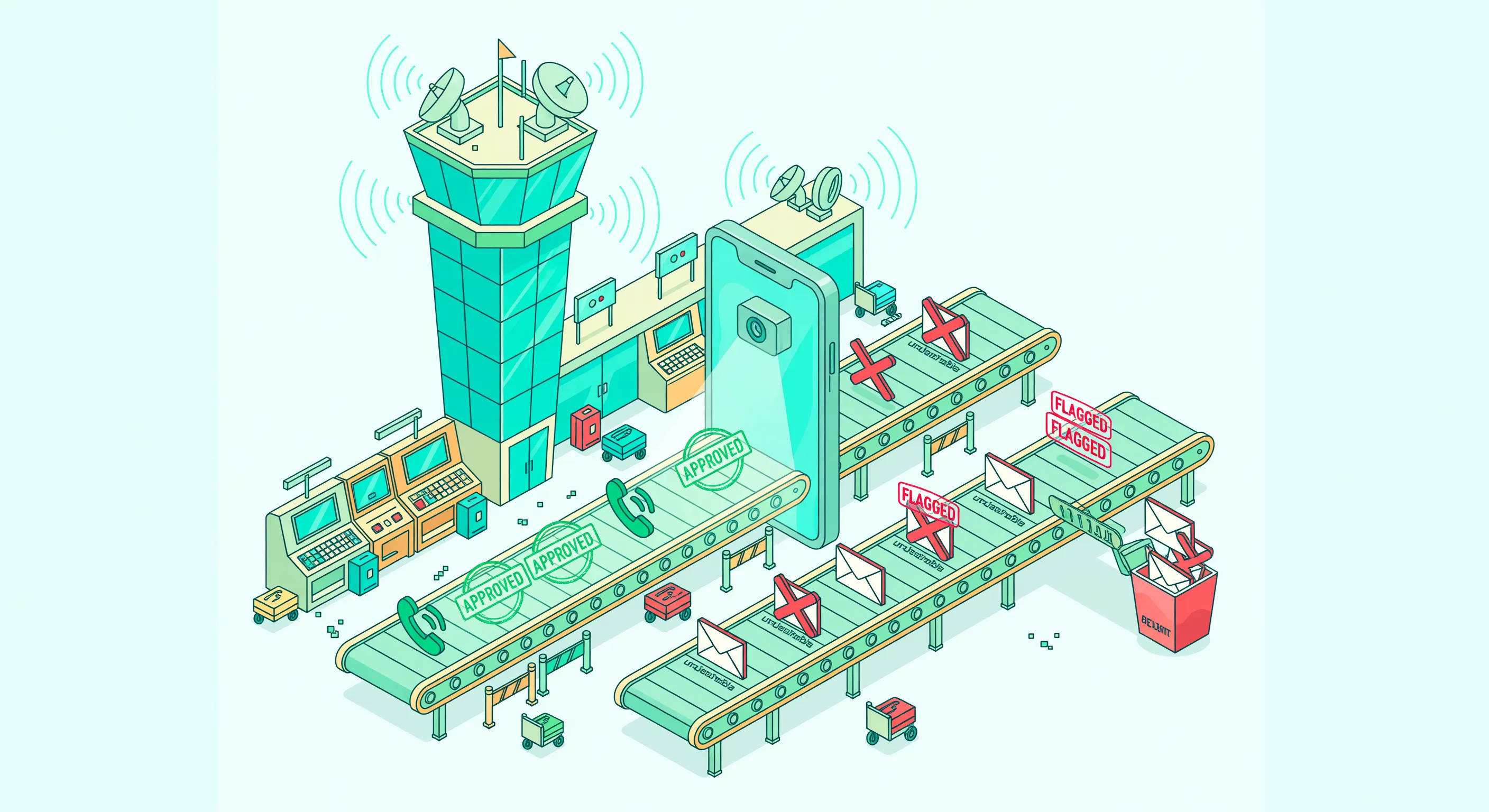

Google Pixel phones come with a built-in call screening feature that most other Android phones don’t have. When an unknown number calls, Google Assistant can answer first, ask the caller who they are and why they’re calling, and show you a real-time transcript so you can decide whether to pick up.
It’s been around since 2018 and has improved significantly. The latest versions can automatically screen suspicious calls and hang up on confirmed spam without bothering you at all.
Here’s how Call Screen works, how to configure it, and where it stops being useful for business calls.
How Call Screen Works
When a call comes in from a number you don’t recognize, you see a “Screen call” button alongside the usual Accept and Decline options. Tap it, and Google Assistant answers on your behalf.
The assistant tells the caller: “Hi, the person you’re calling is using a screening service from Google and will get a transcript of this call. Go ahead and say your name and why you’re calling.”
As the caller speaks, you see a live transcript on your screen. You can then:
- Pick up the call
- Mark it as spam and hang up
- Send a reply like “I’ll call you back” or “Who is this?” (Google Assistant reads it aloud)
- Decline and send to voicemail
The entire conversation between Google Assistant and the caller is transcribed and saved.
Protection Levels
In your Phone app settings, you can set how aggressively Call Screen handles incoming calls.
Maximum Protection
Automatically screens all calls from numbers not in your contacts. Confirmed spam is declined without you seeing it. Suspicious calls are screened, and you see the transcript. Known contacts ring normally.
This is the most aggressive setting. Good if you get a lot of spam. The downside: legitimate first-time callers always hear the screening message before reaching you.
Medium Protection (Default)
Only screens calls that seem suspicious based on Google’s analysis. Confirmed spam is auto-declined. Normal unknown calls ring through without screening. This is the balance most people want.
Basic Protection
Minimal screening. Only confirmed spam gets auto-declined. Everything else rings normally. Good if you don’t get much spam or prefer to answer all calls yourself.
What Happens Locally
A key detail: Call Screen processes everything on-device. The speech recognition, the transcription, and the spam analysis all happen on your Pixel’s hardware. No call audio is sent to Google’s servers. Transcripts are stored locally on your phone.
This is similar to Apple’s Live Voicemail approach. Both companies have moved call processing on-device for privacy.
Which Devices Support It
Call Screen is a Pixel-exclusive feature. It works on:
- Pixel 3 and newer (manual screening only on older models)
- Pixel 6 and newer: full automatic screening with on-device AI
- Pixel Tensor chip models: fastest and most accurate screening
It does not work on:
- Samsung Galaxy phones
- OnePlus, Xiaomi, or any other Android brand
- iPhones (Apple has their own Call Screening in iOS 26)
Some carriers also offer limited call screening through the Google Phone app on non-Pixel devices, but the full feature set is Pixel-only.
Where Call Screen Falls Short
Call Screen is one of the best built-in spam filters on any phone. But if you run a business, it creates problems.
Pixel-Only Lock-In
If you switch to a Samsung, iPhone, or any other phone, you lose Call Screen entirely. For a business that wants consistent call management across multiple team members with different phones, this isn’t practical. You need something that works regardless of device.
The Screening Message Is Generic
Every screened caller hears the same Google Assistant message. There’s no way to customize it with your business name, hours, or a greeting. A potential client calling your physiotherapy practice hears a generic Google screening prompt, not “Welcome to [Practice Name], how can we help?”
No Business Context or Follow-Up
Google Assistant asks one question: who are you and why are you calling? It doesn’t know your business, your services, or what information you need from callers. It can’t ask for an address, describe your availability, or triage urgent versus non-urgent calls.
A property manager getting a maintenance call needs different follow-up questions than a tax advisor getting a new client inquiry. Call Screen treats both the same.
Transcripts Stay on Your Phone
The call transcripts are stored in the Phone app. They don’t sync to a CRM, email, or any business tool. If you need to share a call summary with your team, track it in HubSpot, or log it in a project management tool, you’re doing it manually.
No Structured Data Output
Call Screen gives you a raw transcript. Not a summary. Not extracted contact details. Not categorized action items. You still need to read through everything and figure out what matters.
No 24/7 Coverage
Call Screen depends on your Pixel phone being on and connected. It doesn’t handle calls when your phone is off, dead, or in airplane mode. For businesses that need after-hours coverage, that’s a gap.
Screening Can Frustrate Legitimate Callers
Some callers don’t like being screened. They expect to reach a person (or at least a professional-sounding voicemail). Being told “The person you’re calling is using a screening service” can feel impersonal, especially for a business relationship. A percentage of callers will hang up rather than explain themselves to a robot.
When Call Screen Is Enough
Call Screen works well for:
- Personal spam filtering on your Pixel phone
- Screening robocalls and telemarketers
- Getting context on unknown callers before answering
- People who can check their phone regularly and call back quickly
When You Need More
If phone calls are part of how you make money, Call Screen’s limitations become business risks. You need something that:
- Works on any phone, not just Pixel
- Answers with your business name and a professional greeting
- Has a real conversation, not a one-question screening
- Asks follow-up questions based on your industry
- Captures structured data (name, number, reason, urgency)
- Sends you call summaries with action items
- Integrates with your CRM and business tools
- Provides 24/7 coverage regardless of your phone’s status
- Supports 20+ languages automatically
An AI phone assistant like Safina does all of this. You keep your phone and your number. You just forward unanswered calls to Safina, and every missed call gets a professional response instead of a generic screening prompt. Plans start at $11.99/month.
Frequently Asked Questions
Can I use Call Screen on a Samsung or other Android phone?
No. Full Call Screen is exclusive to Google Pixel phones. Some carriers offer basic spam detection through the Google Phone app on other devices, but the interactive screening feature is Pixel-only.
Does Call Screen record my calls?
It records and transcribes the screening portion (the conversation between Google Assistant and the caller). If you pick up, the recording stops. All transcripts are stored locally on your device.
Can callers hear me during screening?
No. While Call Screen is active, the caller only hears Google Assistant. They can’t hear you, and you can’t speak to them until you accept the call.
Does Call Screen cost anything?
No. It’s a free feature built into every Pixel phone. No subscription or additional app needed.
What happens if I miss a screened call?
The transcript is saved in your Phone app’s Recents. You can read what the caller said and decide whether to call back.
Related Pages
- Apple Live Voicemail Guide - Apple’s equivalent call management feature
- iOS 26 Call Screening Guide - Apple’s Call Screening in iOS 26
- Block Spam Calls - Solutions for spam call management
- Avoid Missed Calls - Never miss an important call
- Safina vs Google Pixel Call Screen - Detailed comparison
- Industries: Property Management | Physiotherapy | Tax Advisor