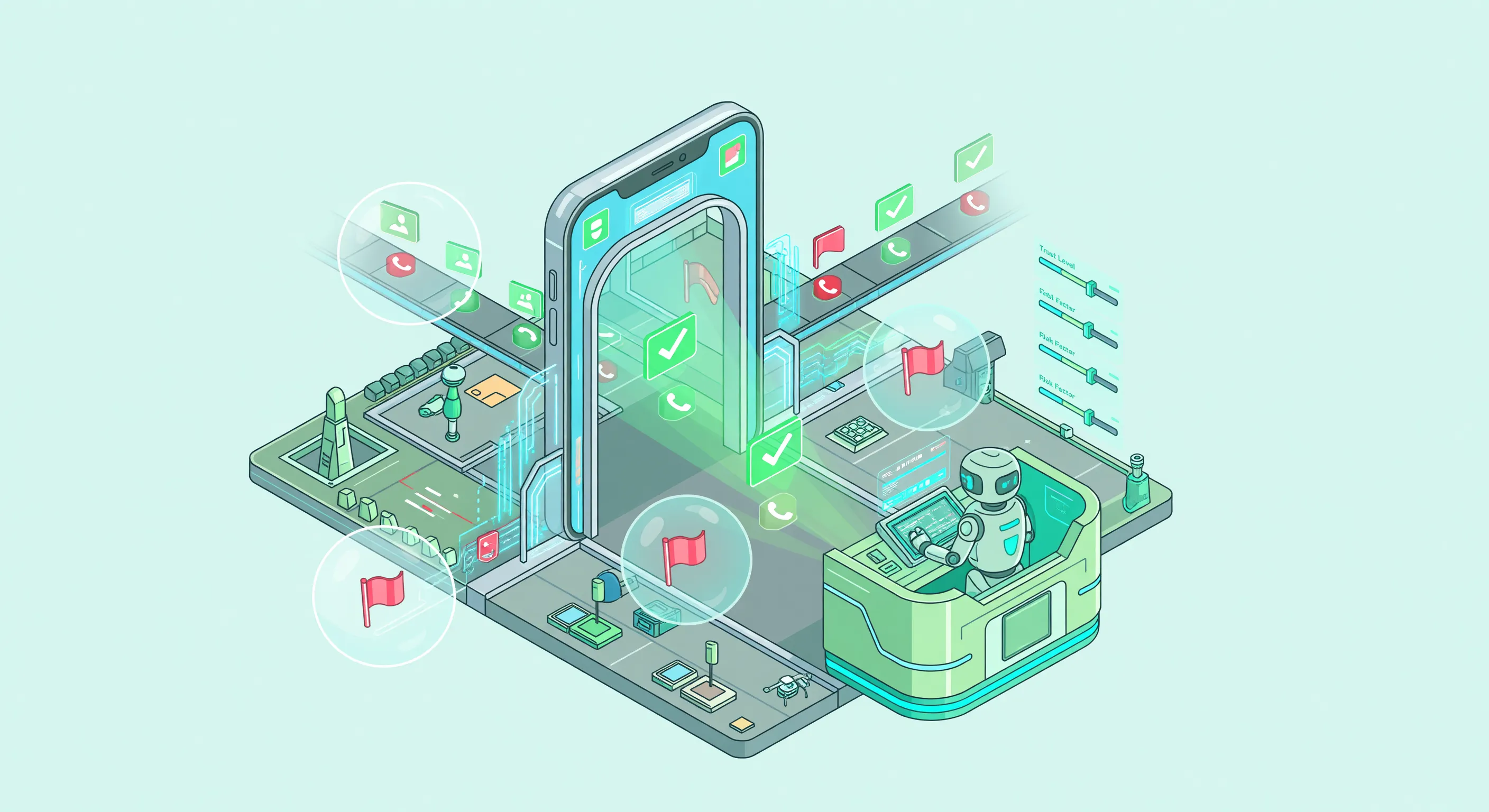

Apple overhauled the Phone app in iOS 26 and added a feature many iPhone users have wanted for years: Call Screening. Instead of just silencing unknown callers, your iPhone can now ask them who they are and why they’re calling before your phone rings.
If you’ve used a Google Pixel, this concept will sound familiar. Apple’s version works differently under the hood, but the goal is the same: let you decide whether to pick up based on context, not just a phone number.
Here’s how it works, how to set it up, and where it falls short if you use your phone for business.
What Call Screening Does
Call Screening intercepts calls from numbers not saved in your contacts. Before your phone rings, the caller hears a message asking them to identify themselves and state their reason for calling. You see their response as a real-time transcription on your screen.
You then have three choices:
- Answer the call
- Decline it (sends to voicemail)
- Let it keep screening while you decide
If the system determines the call is spam or robocall, it can hang up automatically. Legitimate callers get through with context about why they’re calling.
How to Set It Up
Go to Settings > Apps > Phone and scroll down to Screen Unknown Callers. You’ll see three options:
Ask Reason for Calling
This is the most useful setting. When an unknown number calls, your iPhone answers before it rings and asks the caller to state who they are and why they’re calling. You see the transcription on your screen and decide whether to pick up.
Silence
This works like the older “Silence Unknown Callers” feature. Calls from unknown numbers don’t ring. They go straight to voicemail and show up in your Recents list. If you also have Live Voicemail enabled, you’ll see the transcription as they leave a message.
Never
Calls from unknown numbers ring normally. This turns off screening entirely.
How It Differs from Silence Unknown Callers
The old “Silence Unknown Callers” feature (available since iOS 13) was blunt: it sent every unknown call directly to voicemail without ringing. No screening, no context, no choice. You found out who called by checking your voicemail later.
Call Screening adds a layer of intelligence. It actively asks the caller for information and presents it to you in real time. You’re making an informed decision instead of a blanket “ignore everything.”
| Feature | Call Screening (iOS 26) | Silence Unknown Callers (old) |
|---|---|---|
| Asks caller for info | Yes | No |
| Real-time transcript | Yes | No (voicemail only) |
| Auto-blocks spam | Yes | No |
| You decide per call | Yes | No (all silenced) |
| Caller experience | Hears screening message | Hears voicemail |
How It Works with Live Voicemail
Call Screening and Live Voicemail are separate features that work together:
- Call Screening happens before your phone rings. It asks unknown callers to identify themselves.
- Live Voicemail happens after the call goes to voicemail. It transcribes the message in real time.
If a screened caller gets sent to voicemail, Live Voicemail picks up and transcribes whatever they say next. The two features create a layered screening system.
Where Call Screening Falls Short
Call Screening is a solid personal feature. For business use, it has real gaps.
It Only Screens Unknown Numbers
If a caller is in your contacts, they bypass screening entirely. That’s fine for personal use, but business calls often come from unknown numbers: new clients, referrals, partners, suppliers. These are the calls you most need to handle well, and they’re the ones being screened.
The Caller Experience Is Cold
A potential client calls your car workshop. They hear: “The person you’re calling is using a screening service. Please state your name and reason for calling.” That’s not a warm business greeting. It’s a gate.
Compare that to what happens when they reach a human receptionist or an AI phone assistant: “Hi, you’ve reached [Business Name]. How can I help you today?” The tone difference matters, especially for first impressions.
No Follow-Up Questions
Call Screening asks one question: who are you and why are you calling? It doesn’t follow up. If a caller says “I need a quote for a roof repair,” the system can’t ask about the property type, timeline, or budget. You get one sentence of context, not a full intake.
No Summaries or Action Items
You see the real-time transcription, but there’s no structured output. No summary email. No extracted phone number, name, or reason formatted for your CRM. You still need to process everything manually.
No CRM or Business Tool Integration
The transcription lives on your iPhone. It doesn’t sync to your HubSpot, Pipedrive, calendar, or any business tool. If you need to track incoming calls in a system, you’re copying and pasting.
iPhone Only
Call Screening requires iOS 26 on a supported iPhone. If your business line is used by team members on Android, or if you have multiple phone lines, the feature doesn’t scale.
No After-Hours Coverage
Call Screening only works when your iPhone is on and connected to cellular. It doesn’t provide 24/7 coverage. If your phone dies at 11 PM and a tenant calls about a burst pipe, the call goes nowhere useful.
When Call Screening Is Enough
For personal use, Call Screening is a clear upgrade over silencing unknown callers. It works well when:
- You want to filter spam and robocalls from your personal phone
- You’re not relying on calls from unknown numbers for income
- You check your phone regularly and can call back quickly
- You don’t need structured data from each call
When You Need More
If you’re running a business where phone calls generate revenue, Call Screening’s one-question gate isn’t enough. You need something that:
- Answers with your business name, not a generic screening message
- Has a real conversation with the caller
- Asks relevant follow-up questions based on your industry
- Captures structured information (name, number, reason, urgency)
- Sends you a summary with action items
- Works across devices and team members
- Provides 24/7 availability
- Integrates with your business tools
An AI phone assistant like Safina handles all of this. Callers talk to a professional assistant that represents your business, not a cold screening prompt. You get a structured summary, not a raw transcript.
The setup takes 5 minutes: forward unanswered calls to Safina using standard call forwarding codes or the interactive setup tool. Plans start at $11.99/month for 30 minutes.
Frequently Asked Questions
Does Call Screening work with all carriers?
It works with most major carriers that support visual voicemail. Check with your carrier if you’re on a smaller provider or MVNO.
Can I use Call Screening with a business phone line?
You can, but the caller experience is designed for personal use. There’s no way to customize the screening message with your business name or add industry-specific questions.
Does Call Screening block all spam calls?
It blocks many of them automatically, but it’s not perfect. Some spam calls use spoofed numbers that may not be detected. It also doesn’t prevent robocalls from reaching the screening prompt.
Is Call Screening available in all countries?
Apple has been rolling it out gradually. It’s available in the US, UK, Germany, and several other countries. Check Apple’s support page for the latest availability.
Can I keep Call Screening and also use call forwarding?
Yes. If you forward unanswered calls to a service like Safina, calls from unknown numbers can be screened first. If you don’t answer after screening, the call forwards to your AI assistant. However, the handoff depends on how your forwarding is configured.
Related Pages
- Apple Live Voicemail Guide - How real-time voicemail transcription works
- Google Pixel Call Screen Guide - Google’s version of call screening
- Block Spam Calls - Solutions for spam call management
- Automatic Call Answering - Let AI handle your missed calls
- Safina vs Apple Live Voicemail - Detailed comparison
- Industries: Car Workshop | Law Firm | Medical Practice