

Now that your account is set up, let’s take a look at your command center: the Safina app.
We designed the app to be clear and intuitive so you can find everything you need quickly. All functionality is organized into four distinct sections, which you’ll see as tabs at the bottom of the screen. Let’s take a quick tour.
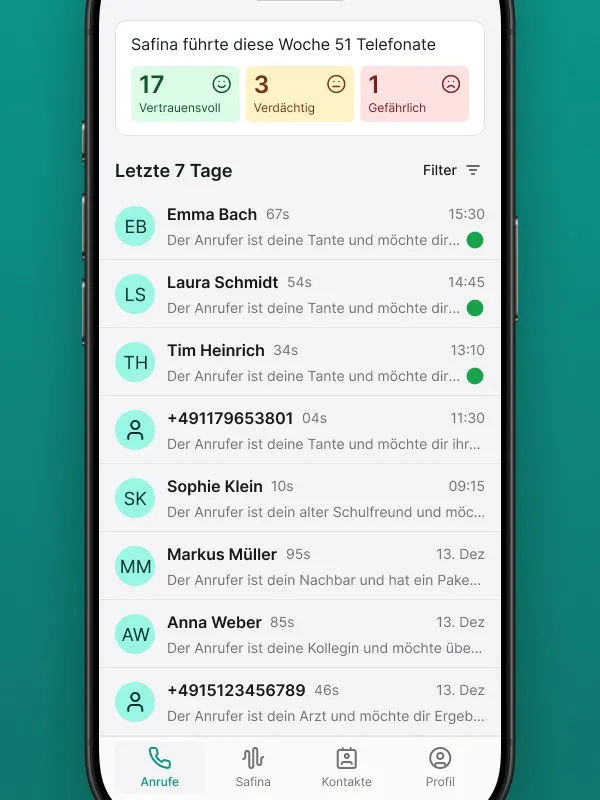
The “Calls” Tab: Your Conversation Overview
This is where everything important ends up after a call. This tab serves as your central inbox for all interactions Safina has handled on your behalf.
- What you’ll find here: A chronological list of all incoming calls. A green dot indicates new, unread summaries.
- Key features: When you tap on a call, the detailed summary opens with the key results, full transcript, and AI analysis.
- What you use it for: To quickly understand who called, what they needed, and how urgent it is.
This is your daily go-to for staying on top of things.
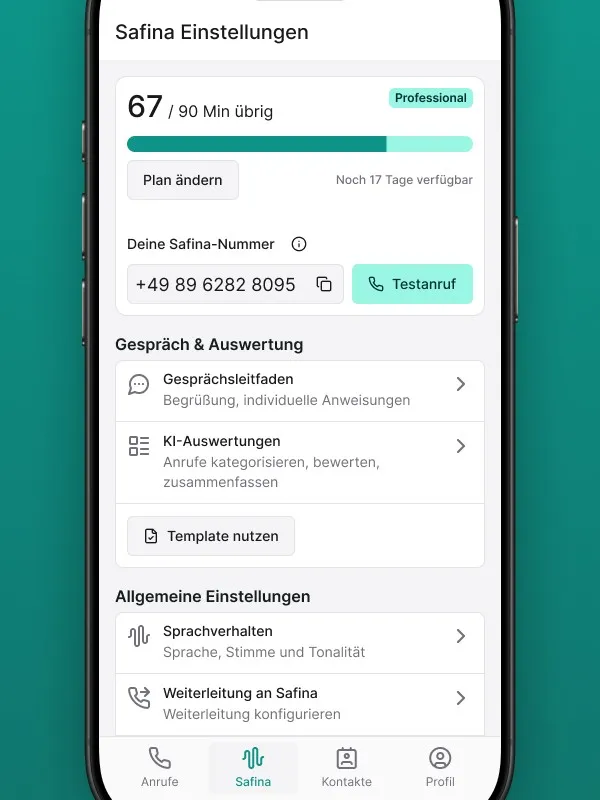
The “Safina AI” Tab: The Heart of Your Configuration
This is where the magic happens. In this tab, you configure everything related to how your assistant behaves and how smart it is.
- What you’ll find here: Your current minute usage, your personal Safina number, and all conversation behavior settings.
- Key features: This is where you activate call forwarding, customize your Safina’s voice and language, and edit the conversation guide or select an industry template. Integrations such as your CRM system or calendar are also set up here.
- What you use it for: To tailor Safina precisely to your business needs.
This is where you make both the basic and detailed adjustments so Safina works perfectly for you.
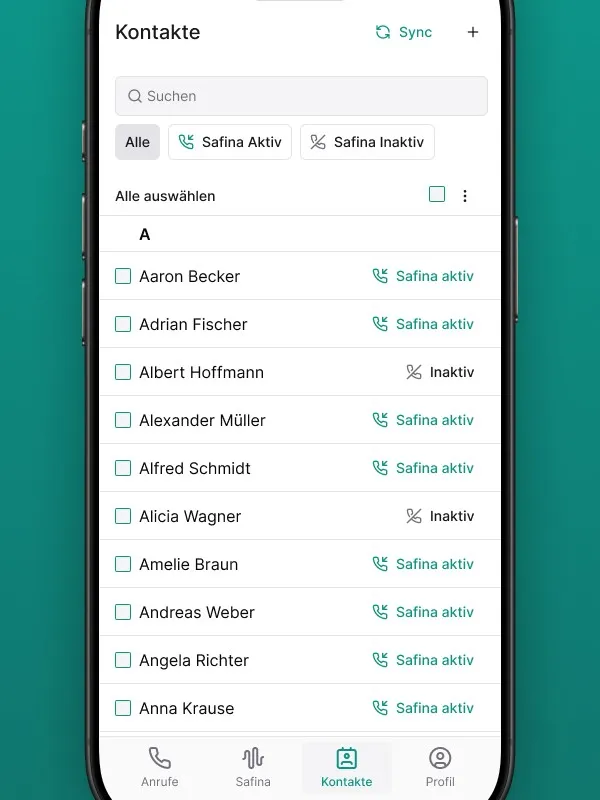
The “Contacts” Tab: Managing Your Callers
In this section, you can manage your contacts to make interactions more personal and define exceptions.
- What you’ll find here: A list of your imported contacts.
- Key features: The main feature here is the ability to deactivate Safina for specific contacts. When someone on this exception list calls, they will never be forwarded to your AI assistant.
- What you use it for: To make sure that, for example, your family, close business partners, or certain VIP clients always reach you directly.
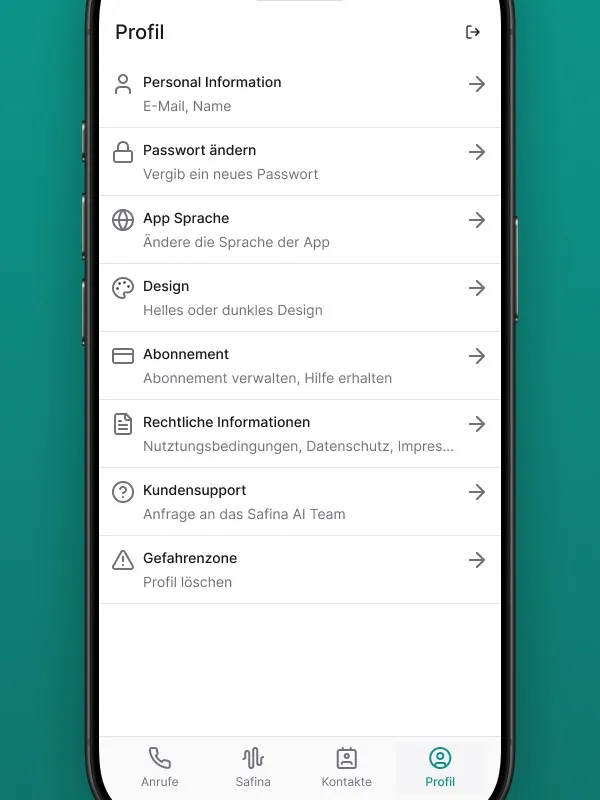
The “Profile” Tab: Your Account Settings
The last tab handles all the administrative aspects of your account.
- What you’ll find here: Your personal information, password settings, and subscription management.
- Key features: Here you can change your password, upgrade your plan, and adjust the app interface language (not Safina’s voice).
- What you use it for: For all organizational aspects of your Safina account.
Everything in Its Place
As you can see, each section has a clear purpose. This structure helps you find your way around quickly and reach any setting in just a few clicks.
We encourage you to simply click through the four tabs to get a feel for the app. Detailed guides are available for each feature described here, in case you want to dive deeper.
Your Safina Team