

Safina Call Forwarding Not Working?

Your calls aren't being forwarded to Safina? This troubleshooting guide shows you how to fix the issue on your mobile phone in 2 steps and what Apple users need to watch out for.

Minimalist vector graphic of two connected phone icons with a broken link symbol between them, representing a failed call forwarding. Help
Karsten Kreh Karsten Kreh

Note: This troubleshooting guide focuses on call forwarding issues from your mobile phone. If you’re having problems with your landline, the cause usually lies in the router settings. In that case, please check our guide on setting up forwarding on your router.

You’ve set everything up on your phone, but calls aren’t reaching your Safina assistant? Don’t worry. This issue is usually caused by a minor glitch in your mobile carrier’s settings and can typically be resolved with a simple “reset.”

Let’s walk through this together step by step.

The 2-Step Fix: Reconfigure the Forwarding

In the vast majority of cases, this method solves the problem. We’ll completely reset all forwarding rules and then set them up cleanly from scratch.

Step 1: Deactivate All Forwarding

First, we need to make sure no old or faulty rules are still active with your mobile carrier.

  1. Open the Phone app on your smartphone (the app you use for regular calls).
  2. Enter the universal code ##002# on the dial pad.
  3. Tap the call button to “dial” this code.
  4. After a brief moment, you should see a confirmation message from your mobile carrier on screen, letting you know that all call forwarding rules have been cleared.
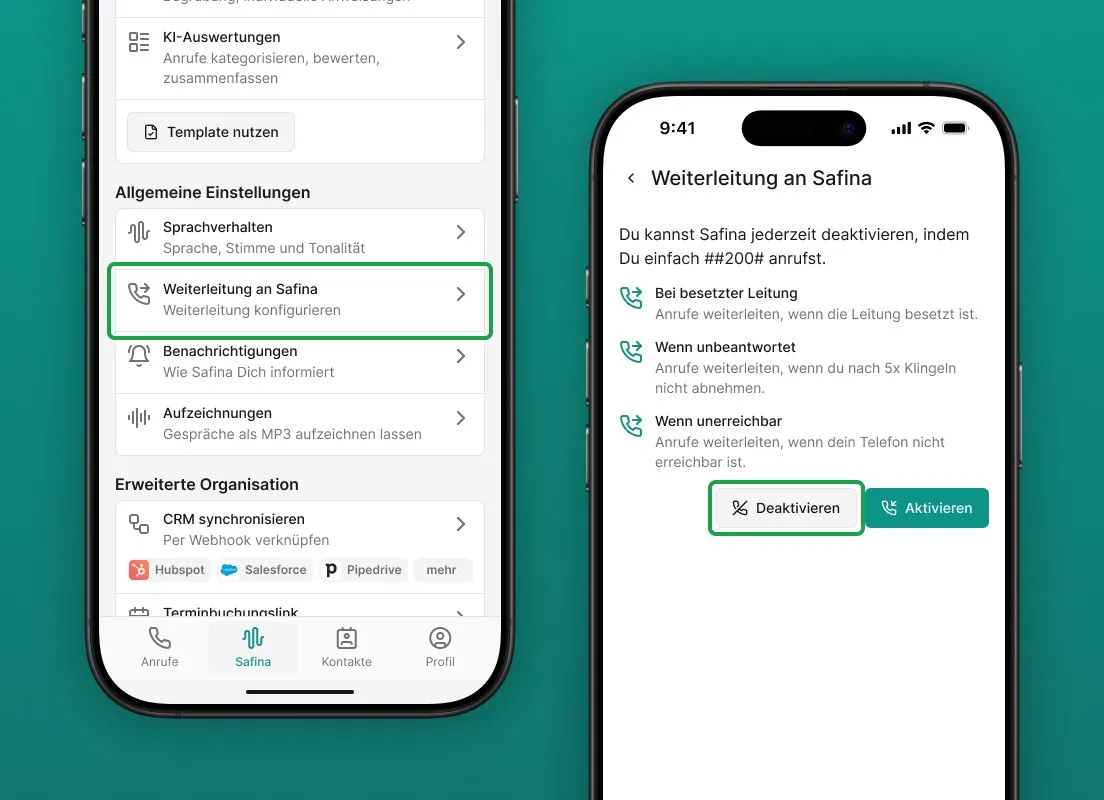
Two screenshots of the Safina AI app side by side. On the left are the general settings, with the "Forward to Safina" option (Configure forwarding) highlighted in green. On the right is the "Forward to Safina" configuration page, with call forwarding options "When busy", "When unanswered" and "When unreachable". A button to deactivate/activate forwarding is visible. Visualizes the simple setup and control of call forwarding to Safina AI.

Alternatively, you can open the Safina app directly and go to the “Safina AI” tab, then under “Forward to Safina,” click the “Deactivate” button. This automatically dials the code ##002#. You’ll just need to tap the call button.
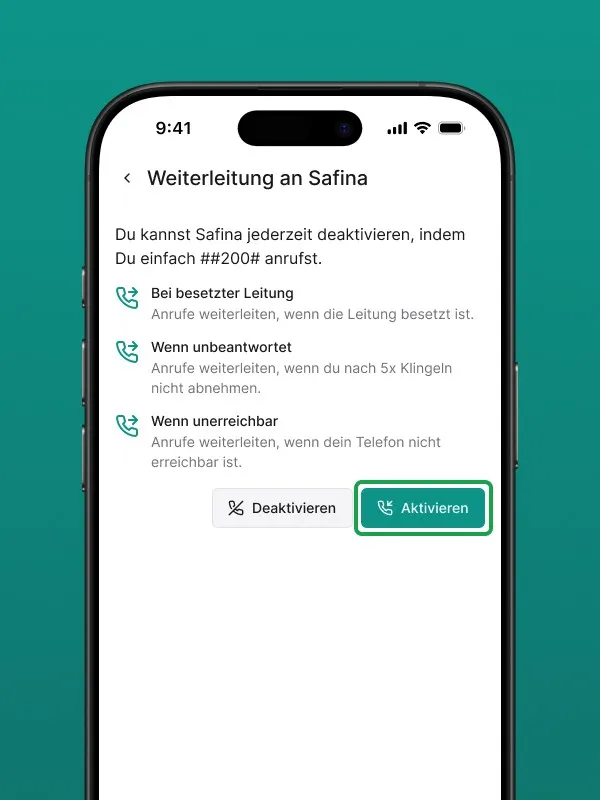
Screenshot of the "Forward to Safina" configuration page in the Safina AI app. Explains how to deactivate Safina using ##200#. Shows call forwarding options for busy line, unanswered calls (after 5 rings), and unreachable phone. The green "Activate" button is highlighted, next to a "Deactivate" button. Illustrates the control over call forwarding to the Safina AI phone assistant.

Step 2: Reactivate Forwarding Through the Safina App

Now that everything has been reset to zero, we simply set up the forwarding to Safina again.

  1. Open the Safina app.
  2. Go to the “Safina AI” tab and then to the “Call Forwarding” menu item.
  3. Select the desired rules (we recommend “Select All” to start) and tap “Activate”.
  4. The app will now guide you through the process just like during the initial setup, where you only need to tap the call button in your Phone app to confirm the control code.

After that, it’s best to make a test call. The issue should now be resolved.
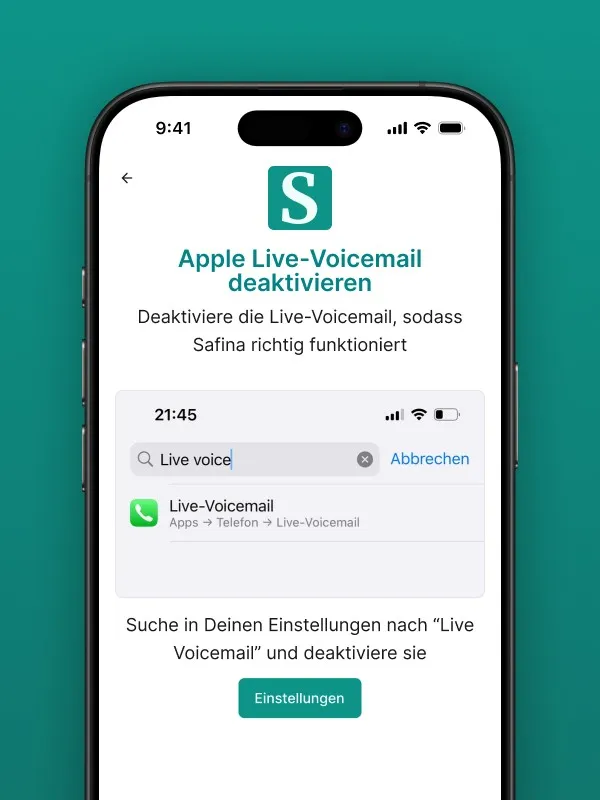
Screenshot of the Safina AI app giving instructions to deactivate Apple Live Voicemail for Safina to work properly. A search field with "Live voice" and the result "Live Voicemail" (Apps -> Phone -> Live Voicemail) is shown. At the bottom is a "Settings" button to go directly to iOS settings. Shows an important step for optimizing Safina AI call forwarding on Apple devices.

Important Note for Apple Users: Live Voicemail

On iPhones, a special feature called “Live Voicemail” can occasionally conflict with call forwarding. If you’re using an iPhone and the steps above didn’t solve the problem, please deactivate this feature.

  • Go to your iPhone’s “Settings”.
  • Use the search bar at the top to search for “Live Voicemail”.
  • Turn off the feature in the menu that opens.

Still Having Problems? We’re Here to Help.

If the forwarding still isn’t working despite trying everything, please don’t hesitate to contact our support team. You can reach us at safina.ai/help/personal. We’ll take a detailed look at the issue together with you.

Your Safina Team

9:41

Safina handled 51 calls this week

46

Trustworthy

4

Suspicious

1

Dangerous

Last 7 days
Filter
EM
Emma Martin 67s 15:30

Wants to discuss the offer for the new campaign and has questions about the timeline.

LS
Laura Smith 54s 14:45

Asking about the order status and when the delivery arrives.

TH
Tim Miller 34s 13:10

Schedule a meeting for the project discussion next week.

Unknown 44s 11:30

Prize promise – probably spam.

SK
Sarah King 10s 09:15

Complaint about the last order, asks for a callback.

MM
Mike Mitchell 95s Dec 13

Wants to discuss a potential collaboration.

AR
Amy Roberts 85s Dec 13

Is your colleague and wants to discuss the project.

JK
Jack Kennedy 42s Dec 12

Asking about available appointments next week.

LB
Lisa Brown 68s Dec 12

Has questions about the invoice and asks for clarification.

Calls
Safina
Contacts
Profile
9:41
Call from Emma Martin
Dec 12
11:30
67s

Wants to discuss the offer for the new campaign and has questions about the timeline.

Key points

  • Call back Emma Martin
  • Clarify timeline & pricing questions
Call back
Edit contact

AI Insights

Caller mood Very good

The caller was cooperative and provided the needed information.

Urgency Low

The caller can wait for a response.

Audio & Transcript

0:16

Hello, this is Safina AI, Peter's digital assistant. How can I help you?

Hi Safina, this is Emma Martin. I wanted to discuss the offer and the timeline.

Thanks, Emma. Are you mainly deciding between the Standard and Pro package for the launch?

Exactly. We need the Pro package and would like to start next month if onboarding is possible in week one.

Say goodbye to your old-fashioned voicemail.

Try Safina for free and start managing your calls intelligently.

Start Your Free Trial