

| Requirement | Details |
|---|---|
| Safina Plan | Personal or higher |
The “Calls” tab is your central log for all conversations Safina has handled on your behalf. Over time, this list will grow. To make sure you always keep a clear overview even with many entries, we’ve built in some helpful organizational tools.
Let’s take a look at how to navigate your call list.
How to Navigate Your Call List
Open the “Calls” tab in your app. Here you can see all interactions at a glance. The following elements will help you find your way.
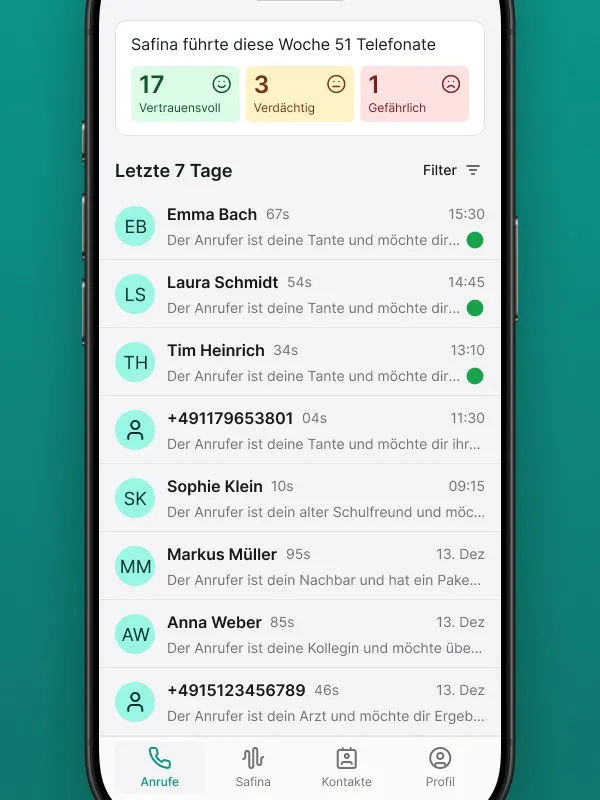
The Chronological View
By default, all your calls are sorted chronologically — the most recent call is always at the top. For better clarity, the app often divides the list into time periods such as “Last 7 days” and “Older”.
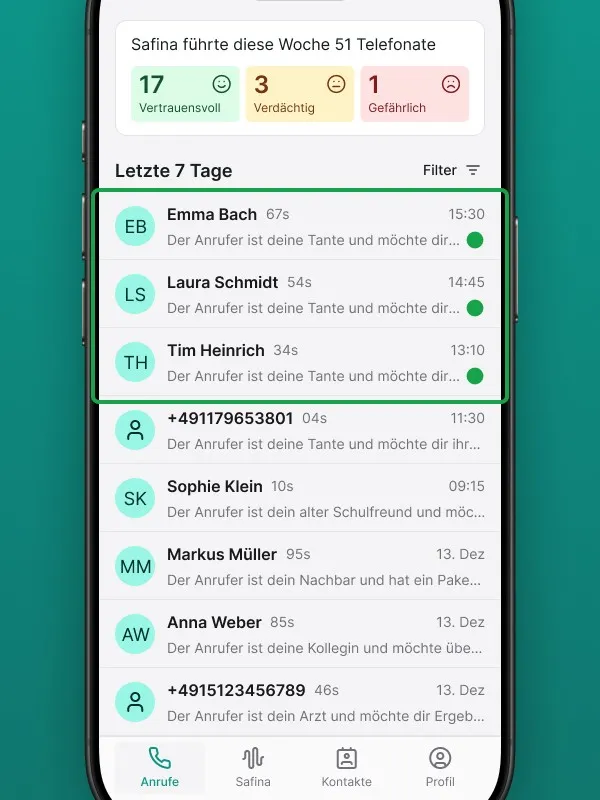
Spotting New Messages: The Green Dot
A detail you might already know from messaging apps: a green dot next to a call means the summary is new and hasn’t been read by you yet.
Once you tap the call and open the detail view, the green dot disappears. This way, you can always see at a glance what needs your attention.
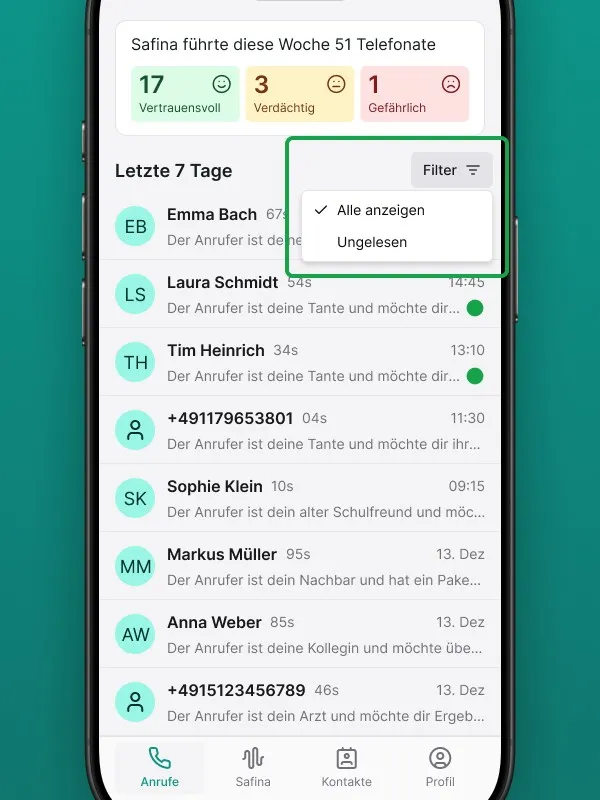
Finding Calls with the Filter Function
When you’re looking for a specific call or just want to see what’s new, the filter function is your most important tool.
- At the top of the call list, you’ll find a filter icon or a corresponding button.
- Click on it to see the available options.
- The most important option is the “Show unread” filter. When activated, the list hides all already-read calls. This lets you focus entirely on the new, unprocessed inquiries.
Clicking into the Details
Every entry in the list is a gateway to a wealth of information. Tapping a call opens the full detail view. There you’ll find the AI-generated summary, the word-for-word transcript, and additional analysis.
For a detailed look at what awaits you in this detail view, check out this article: Call summaries in Safina: All details explained.
Always Stay in Control
The call list is more than just a log. It’s an interactive tool that helps you manage your communication efficiently. With chronological sorting, “unread” markers, and filters, you can be sure that no important information slips through the cracks.
Your Safina Team