
Quick answer: After every call, Safina sends you a summary with the caller’s name, what they wanted, key action items, a full transcript, and an optional audio recording. You get everything in one place, no voicemail to listen to.
What You Get After Every Call
Every time Safina handles a call, you receive a structured summary. Not a raw audio file to listen to. Not a word-for-word transcript that takes five minutes to read. A clear, organized breakdown of what the caller said, what they need, and what you should do next.
This is what sets an AI phone assistant apart from voicemail or a basic answering service. The information arrives ready to act on, not buried in audio or scattered across a transcript.
Anatomy of a Call Summary
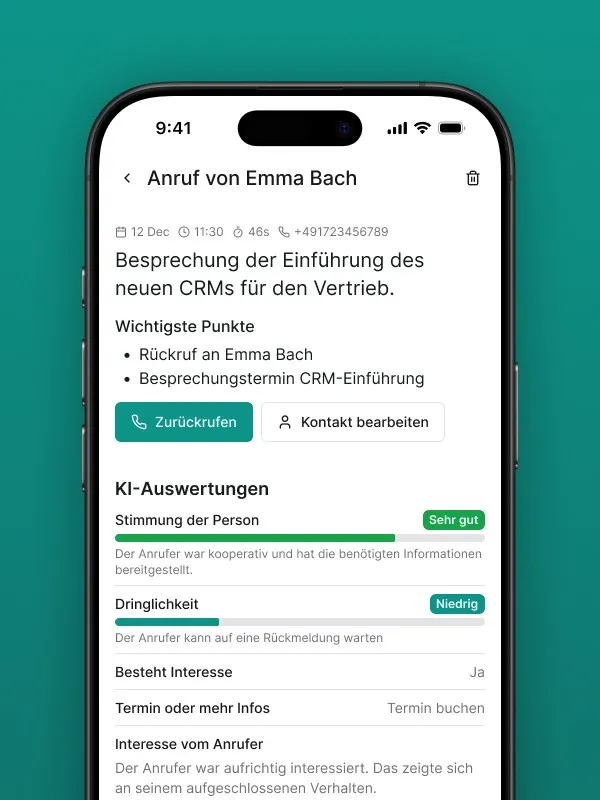
Each summary is divided into several logical sections so you can absorb the information however works best for you.
Caller Information
- Name (as stated by the caller)
- Phone number (from caller ID, confirmed verbally when needed)
- Company or affiliation (if mentioned)
Call Details
- Reason for calling (summarized in one or two sentences)
- Key details discussed during the conversation
- Specific questions the caller asked
Action Items
- What the caller expects to happen next
- Urgency level (routine, important, urgent)
- Preferred callback time or method
Custom Fields
- Any information specific to your business that you configured Safina to collect (appointment preferences, insurance provider, property address, order number, or anything else)
Here is what a real summary might look like for a plumbing business:
Caller: Maria Schmidt, 0171-555-0234 Reason: Leaking pipe under kitchen sink, water spreading to hallway Urgency: High (actively leaking) Details: Tenant in apartment 3B, landlord authorized repairs, has spare key with neighbor in 3A Callback: Available all day today, prefers call over text Action: Schedule emergency visit, bring pipe fittings for under-sink repair
You scan that in 10 seconds and know exactly what to do. Compare that to listening to a 2-minute voicemail and trying to catch a phone number mumbled halfway through.
AI Analyses
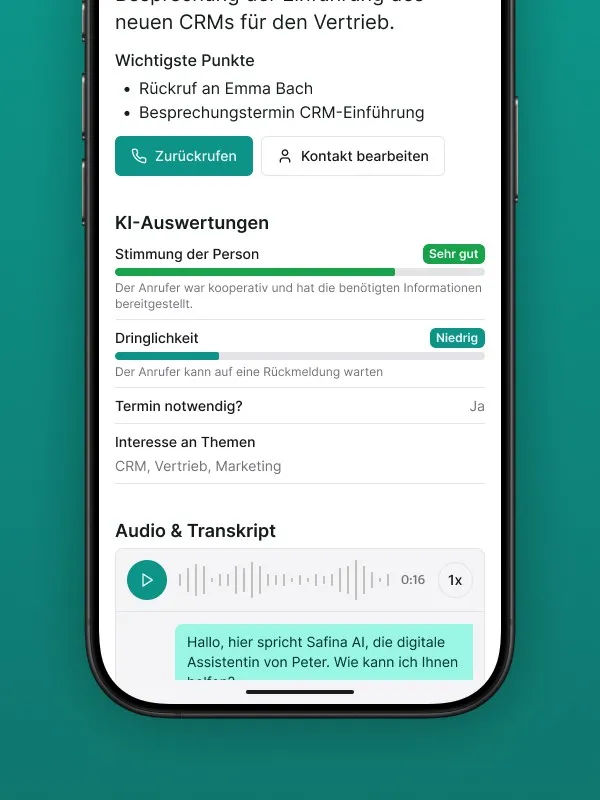
Beyond the basic summary, a specialized AI analyzes the conversation and presents structured data:
- Structured Data: All the information you defined as important in your conversation guide or template (e.g., name, address, customer number, type of issue) is listed in a clean format. Ideal for transferring directly into other systems.
- Standard Analyses: Safina always evaluates the caller’s sentiment (positive or negative) and the urgency of their concern, regardless of your custom settings.
- Hidden Analyses: Results of automatic detection rules you configured, such as emergency detection or revenue potential, also appear here.
Transcript and Audio
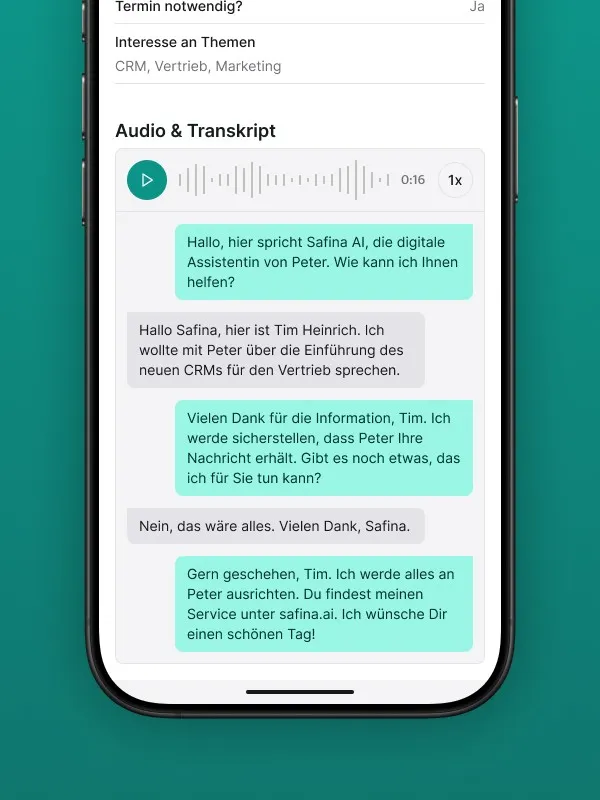
Every summary includes the full conversation transcript, displayed in speech bubbles so you can see who said what. If you have enabled call recording, the audio file appears here too. Useful for catching nuances like the caller’s tone of voice.
Notification Speed and Channels
Getting the summary quickly matters. If a caller reports an emergency at 11 PM, finding out at 9 AM the next morning is too late.
Push notifications arrive on your phone within seconds of the call ending. You see a preview right on your lock screen: who called, what they need, and how urgent it is. Tap to see the full summary in the Safina app.
Email notifications arrive within about a minute. The full summary is included in the email body, so you can read it without opening the app. Useful if you prefer managing follow-ups from your inbox.
In-app dashboard shows all calls in a feed, sorted by time, with urgency indicators. When you open the Safina app in the morning, you see everything that happened overnight in one place.
For businesses with high call volumes, you can configure notification rules: only push-notify for urgent calls, batch non-urgent summaries into a daily digest, or route different call types to different team members.
CRM and Workflow Integration
Call summaries are valuable on their own, but they become even more useful when they flow into the tools you already use.
Safina connects with popular business tools through multiple channels.
Direct integrations with platforms like HubSpot and Pipedrive let you push call data directly into your CRM. A new call summary can create a contact, update a deal, or add a note to an existing record automatically.
Webhook support sends summary data to any system that accepts HTTP requests. Your development team can build custom integrations that push call data wherever it needs to go.
Zapier, Make, and n8n offer no-code connections to thousands of tools. Set up a workflow like “When Safina captures a call, create a task in Asana and send a Slack message to the team channel.” No programming required.
Email forwarding sends summaries to any email address, including shared inboxes and helpdesk systems. If your team uses a shared mailbox to manage customer requests, Safina summaries can land right there alongside everything else.
The benefit: no manual data entry. When Safina captures a call, the information flows into your CRM, project management tool, or notification channel automatically. You follow up with the caller, not with copy-pasting details between systems.
Customizing What Gets Captured
Every business needs different information from callers. A dental practice cares about symptoms and insurance. A real estate agent needs property addresses and budget ranges. A cleaning service wants square footage and preferred scheduling.
Safina lets you define exactly what to collect.
Question configuration. You specify which questions Safina asks callers, in what order, and how to phrase them. Want to know their preferred appointment day? Add it. Need their membership number? Include it. The conversation adapts to your needs.
Information sharing. Along with collecting data, you can configure Safina to share specific information when asked. Business hours, pricing, directions, or answers to frequently asked questions. This reduces callbacks for simple inquiries.
Priority rules. Define what counts as urgent versus routine based on keywords or caller responses. If someone mentions “flood” or “emergency,” Safina marks the call as high priority and you get an immediate notification.
Custom labels and tags. Tag calls by type (new customer, existing customer, vendor, personal) so you can filter and sort them in the app. These tags also carry through to CRM integrations.
Use our script templates as a starting point. Each template includes pre-configured questions for specific industries that you can modify to match your exact needs.
Team Access and Collaboration
If you run a team, call summaries become a shared resource.
Role-based access lets you control who sees what. The business owner might see all calls. A team lead might see only calls for their department. A scheduling assistant might only see appointment-related calls.
Call assignment routes specific summaries to specific team members based on call type, urgency, or content. An urgent plumbing emergency goes to the on-call technician. A billing question goes to the office manager.
Follow-up tracking lets team members mark calls as “followed up,” “in progress,” or “resolved.” This creates accountability and prevents calls from falling through the cracks, especially during busy periods.
For businesses that handle dozens of calls daily, this turns Safina from a phone answering tool into a lightweight call management system. Every call is captured, assigned, tracked, and resolved, with a full audit trail.
Making the Most of Your Summaries
A few tips from businesses that get the most value out of call summaries.
Review summaries during transition moments. Between meetings, during your commute (parked, obviously), or first thing in the morning. A quick scan of 5-10 summaries takes under two minutes and keeps you on top of everything.
Use urgency levels to prioritize. Not every call needs an immediate callback. Safina’s urgency tagging helps you call back the emergency first and the “just checking availability” caller later.
Connect to your calendar. When a caller requests a specific callback time, some integrations can automatically block that time on your calendar as a reminder.
Revisit your question configuration monthly. After running Safina for a few weeks, you will notice patterns. Maybe callers keep asking a question Safina does not address. Add it. Maybe one of your configured questions is not producing useful answers. Remove it. Fine-tuning takes minutes.
To learn more about setting up Safina for your business, check our getting started guide. For a full comparison of what different AI phone solutions offer, visit our comparison page.