
Why Integrations Matter for Phone Handling
Answering a call is only the first step. What happens with the information after the call ends is where the real value lies. If call summaries sit in one app while your customer records live in another, you’re doing double work: reading the summary, then manually entering data somewhere else.
Integrations close that gap. When Safina finishes a call, the summary, caller details, and any action items flow directly into the tools you already use. Your CRM gets updated. Your calendar gets a follow-up reminder. Your team gets notified. All without you copying and pasting a thing.
Available Integrations
Here’s the full list of platforms Safina connects to, along with what each one does.
Direct CRM Integrations
HubSpot: After each call, Safina creates or updates a contact in HubSpot, logs the call as an activity, and attaches the summary. If the caller is already in your database, Safina matches them by phone number and adds the new interaction to their timeline. New callers become new contacts with all captured details pre-filled.
Pipedrive: Similar to HubSpot, Safina syncs call data to Pipedrive. New callers create new leads. Existing contacts get activity entries. You can set up Pipedrive automations to trigger based on Safina call events, like moving a deal to the next stage when a follow-up call happens.
Calendar Integrations
Google Calendar: When a caller requests an appointment or mentions a preferred date, Safina can create a calendar event or send you a reminder to schedule one. This is especially useful for service businesses and medical practices where appointment booking drives revenue.
Microsoft Outlook: Works the same way as Google Calendar. Call follow-ups and appointment requests sync to your Outlook calendar. If you run your scheduling through Outlook, the data lands where you already look.
Automation Platforms
Zapier: Safina triggers Zapier workflows (“Zaps”) when a call completes. From there, you can route data to any of Zapier’s 6,000+ app connections. Popular setups include: sending call summaries to Slack, creating Trello cards for follow-up tasks, adding leads to Mailchimp lists, and updating Google Sheets with call logs.
Make (formerly Integromat): Make offers visual automation scenarios with more granular control than Zapier. You can build multi-step workflows that filter calls by type, route urgent inquiries to SMS notifications, and send routine calls to a weekly digest email.
n8n: For businesses that prefer self-hosted automation or need more flexibility, n8n connects to Safina via webhooks. The open-source platform lets you build workflows without vendor lock-in, and it runs on your own infrastructure if you want full control.
Other Integrations
Notion: Call summaries can be pushed to a Notion database, creating a searchable log of all caller interactions. This works well for teams that use Notion as their central workspace.
Brevo (formerly Sendinblue): New caller contacts can be added to Brevo for email marketing follow-ups. If someone calls asking about your services, they can automatically receive a follow-up email with pricing or next steps.
Webhooks: For custom setups, Safina sends structured JSON data to any URL you specify. This is the most flexible option, letting your development team build whatever integration they need. Webhook payloads include caller details, transcript, summary, and metadata.
Setting Up a Webhook in Safina
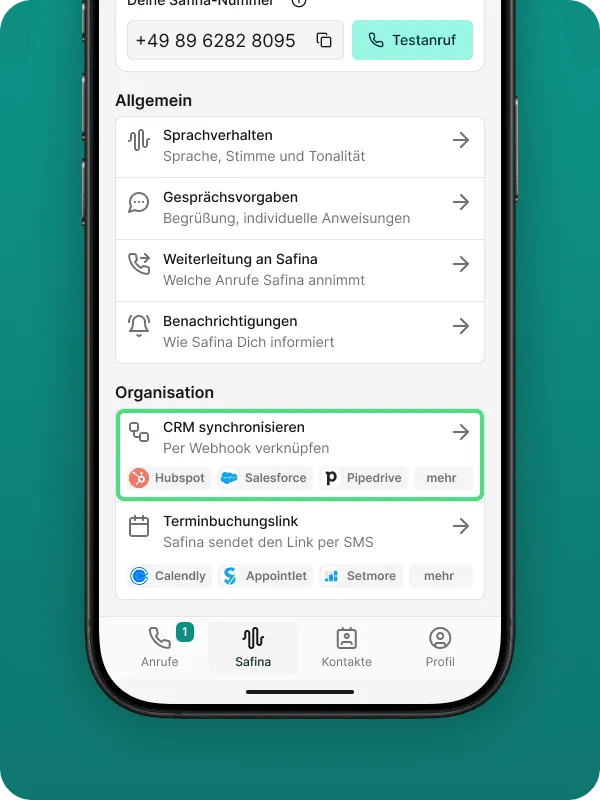
To configure a webhook, go to the “Safina AI” tab and select “Sync CRM”.
Add a new webhook and fill in the configuration fields:
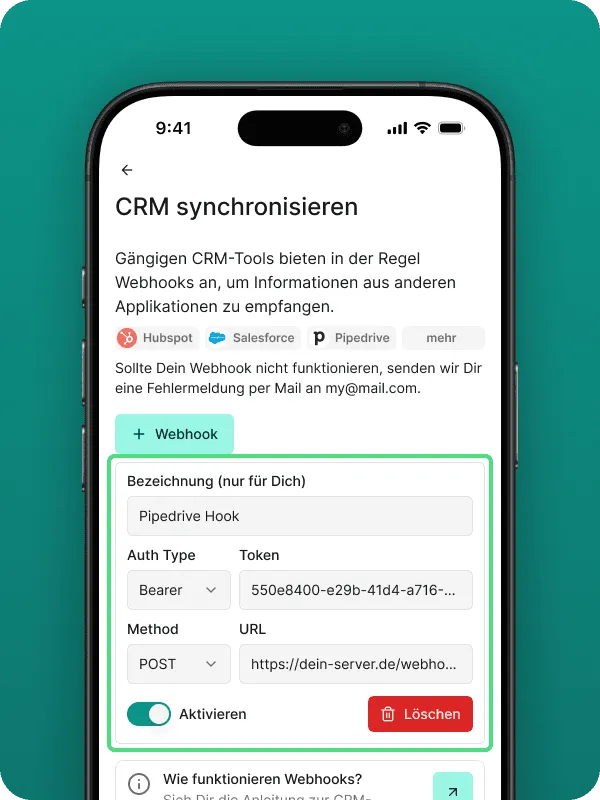
| Field | Description | Example |
|---|---|---|
| Label | An internal name to identify the webhook | HubSpot Hook |
| Auth Type | The type of authentication | API_KEY, Bearer |
| Token | A security token for authentication | 550e8400-e29b-41d4-a716... |
| Method | The HTTP method for the webhook call | POST |
| URL | The target URL of your webhook endpoint | https://your-domain.com/safina-webhook |
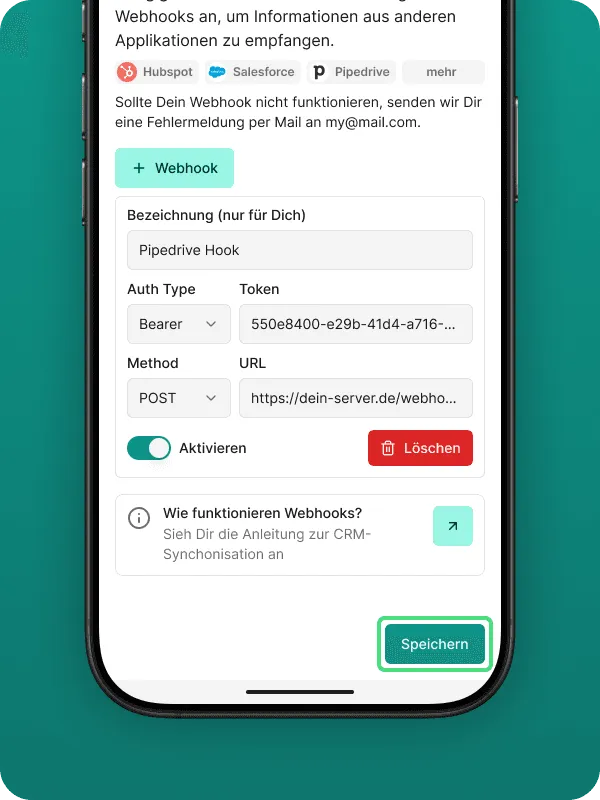
Save when you’re done. The webhook starts receiving data on the next call.
CRM Webhook Documentation Links
If your CRM supports webhooks natively, you can create an endpoint there and connect it to Safina:
| Tool | Documentation |
|---|---|
| Salesforce | Create a webhook data action target |
| HubSpot | Webhooks |
| Zapier | How to get started with Webhooks by Zapier |
| Make | Webhooks |
| Zoho | Creating Webhooks |
| Pipedrive | Webhooks |
| Zendesk | Webhooks |
For detailed setup guides for each integration, visit our integrations page.
How Data Flows from Call to CRM
Here’s what happens behind the scenes when a call ends:
- Safina completes the call and generates a summary
- The system packages the data: caller name, phone number, call duration, transcript, summary, extracted action items
- Connected integrations receive this data in real time
- Your CRM creates or updates the contact record
- Your calendar gets any appointment-related entries
- Your automation workflows fire any configured actions
The whole process takes seconds. By the time you open your CRM, the new entry is already there.
This matters because speed counts in sales. Research shows that responding to a lead within 5 minutes makes you 21 times more likely to connect. When Safina feeds data directly to your CRM, you’re not losing minutes to manual data entry. You see the lead, you call back, you close.
No-Code Setup Process
Every Safina integration is designed for people who don’t write code. Here’s what the setup looks like for each type:
Direct integrations (HubSpot, Pipedrive, Google Calendar, Outlook): Open Safina, go to Integrations, select the app, click Connect. You’ll be redirected to log into that service. Authorize access. Done. Data starts flowing on the next call.
Zapier and Make: Create an account on either platform (free tiers are available). Search for “Safina” in their app directory. Select a trigger event (like “New Call Summary”). Connect your Safina account. Then choose where the data should go and map the fields. The visual builder walks you through each step.
Webhooks: Enter a URL where you want data sent. Safina pushes JSON to that endpoint after every call. This is the only option that might benefit from a developer’s help, depending on what you’re building on the receiving end.
If you’re new to integrations, start with a direct CRM connection. That alone saves most businesses 10-15 minutes per day on data entry. You can always add automation workflows later as your needs grow.
Popular Integration Setups by Business Type
Different businesses get value from different integration combinations. Here are a few common patterns:
Solo consultants and freelancers: Safina + Google Calendar + Notion. Calls create calendar follow-ups and log to a Notion database. Simple, organized, and easy to set up.
Small service businesses: Safina + Pipedrive + Zapier. Calls create leads in Pipedrive. Zapier sends a Slack notification for urgent calls. Weekly Zap compiles a call summary report.
Medical and legal practices: Safina + Outlook + HubSpot. Appointment requests sync to Outlook. Patient or client records update in HubSpot. Data stays GDPR-compliant through the entire flow.
E-commerce support teams: Safina + Make + Brevo. Customer calls create support tickets. New contacts enter a Brevo email sequence. Make routes VIP customers to immediate SMS alerts.
Multi-location businesses: Safina + Webhooks + custom CRM. Webhook data feeds into a centralized system that routes calls by location. Each branch sees only their calls.
For more on how different industries configure Safina, visit our industry pages.
What Data Gets Shared
When Safina connects to an external tool, you control exactly what data is included. The available fields are:
- Caller phone number
- Caller name (if provided)
- Call date and time
- Call duration
- Full transcript
- AI-generated summary
- Extracted action items
- Urgency level
- Category or reason for call
You can choose which fields to send to each integration. If you only want summaries in your CRM but full transcripts in Notion, that’s a straightforward configuration. Data privacy stays under your control at every step, and all transfers happen over encrypted connections.
For questions about data handling and compliance, check our guide on privacy and GDPR compliance. For the full list of integration options and how-to guides, head to our integrations hub.