
| Requirement | Details |
|---|---|
| Safina Plan | Personal or higher |
| Device | Safina Mobile App (iOS or Android) |
A phone number is anonymous — a name gives it context. To instantly see who tried to reach you in your call list, you can import your address book into Safina.
This small step makes your overview much more personal and makes it far easier to match calls to the right context. Here’s how to do it.
Import Your Contacts in 3 Steps
The import is only available through the Safina mobile app on your smartphone (iOS or Android), since it accesses your local address book from there.
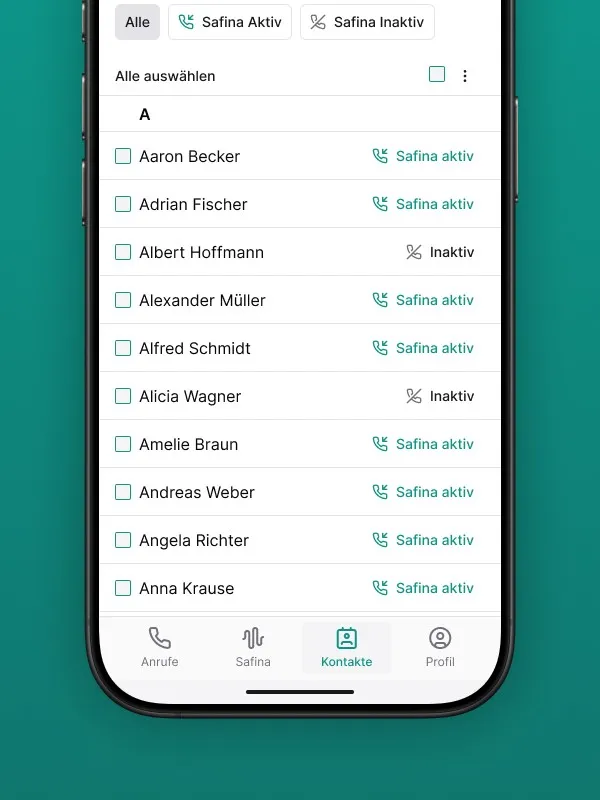
Step 1: Navigate to the Contacts Tab
Open the Safina app on your smartphone and select the “Contacts” tab in the bottom menu bar.
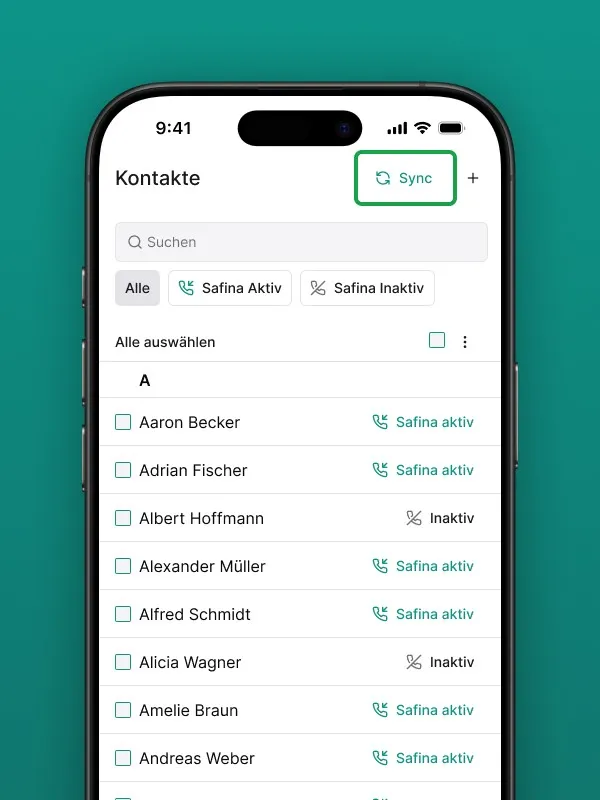
Step 2: Start the Import
You’ll see a button labeled “Sync” at the top.
- Tap this button.
- Your smartphone will ask you for permission to let Safina access your contacts. This is a standard security prompt from your operating system.
A note on privacy: We take the protection of your data very seriously. The access is used solely to load names and numbers into your Safina app so they can be displayed for you.
Step 3: Confirm and Complete the Import
Once you’ve granted permission, the import begins. After a few moments, you’ll see your complete contact list directly in the app. The process is now complete.
What Are the Benefits of Importing Your Contacts?
Importing your contacts gives you two clear advantages in your daily workflow:
- Direct name display: The biggest benefit is that your “Calls” overview will now show the name stored in your phone instead of just a number. You’ll always know instantly who called.
- Foundation for exceptions: The contact list is the basis for defining exceptions for Safina. You can specify for each individual contact whether Safina should answer calls from that person or not. We explain more about this in the next article.
Your Calls, Perfectly Organized
As you can see, just a few clicks give you a much better overview and more personalized management of your calls. Your imported contacts are, of course, synchronized across all devices you use Safina on.
Your Safina Team