
| Requirement | Details |
|---|---|
| Safina Plan | Personal or higher |
Safina takes calls off your hands so you can stay focused. Still, you naturally want to know in a timely manner who called and what they needed.
That’s why you can configure exactly how and where you’d like to be notified about new call summaries. You can choose between direct push notifications to your phone, an email, or both.
How to Configure Your Notifications
The settings for your notification channels can be found in the central configuration area of your assistant.
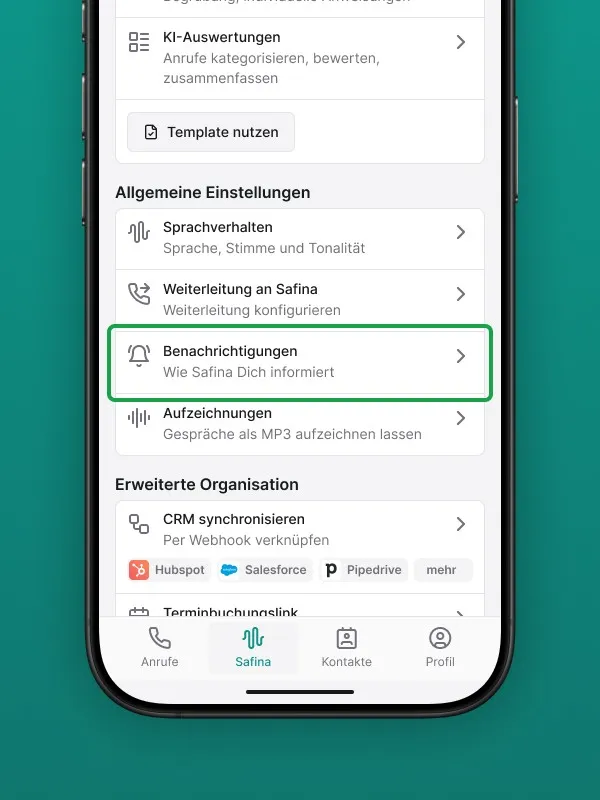
Step 1: Navigate to the Configuration Tab
Open your Safina app and go to the “Safina AI” tab.
Step 2: Find the Notifications Section
Scroll through the list of settings until you find the “Notifications” section and tap on it.
Step 3: Choose Your Channels
You’ll now see the different channels you can activate and configure.
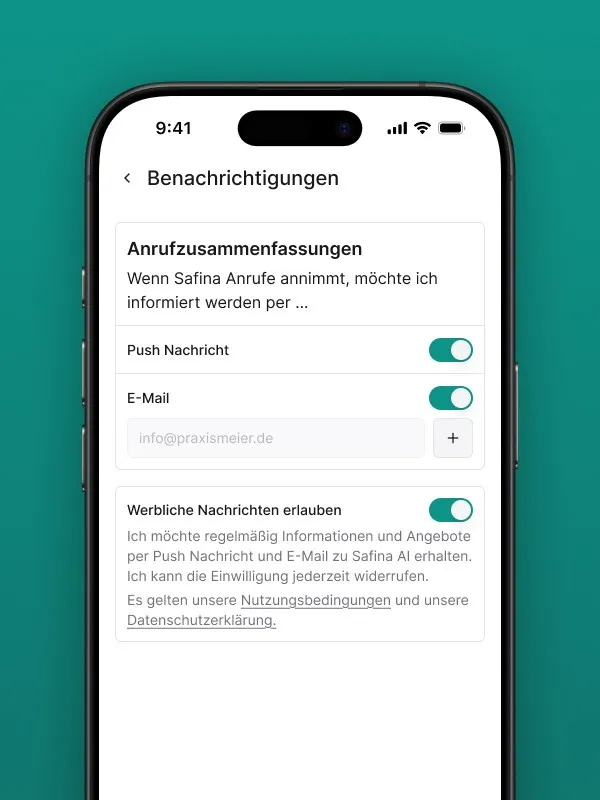
Push Notifications
These are the direct, brief messages that appear on your smartphone’s lock screen or home screen.
- Find the toggle for “Push Notifications”.
- Enable this toggle if you want to receive an instant notification as soon as a call has been handled by Safina.
- Important: For this to work, you must have granted the Safina app permission to send notifications in your smartphone’s general settings.
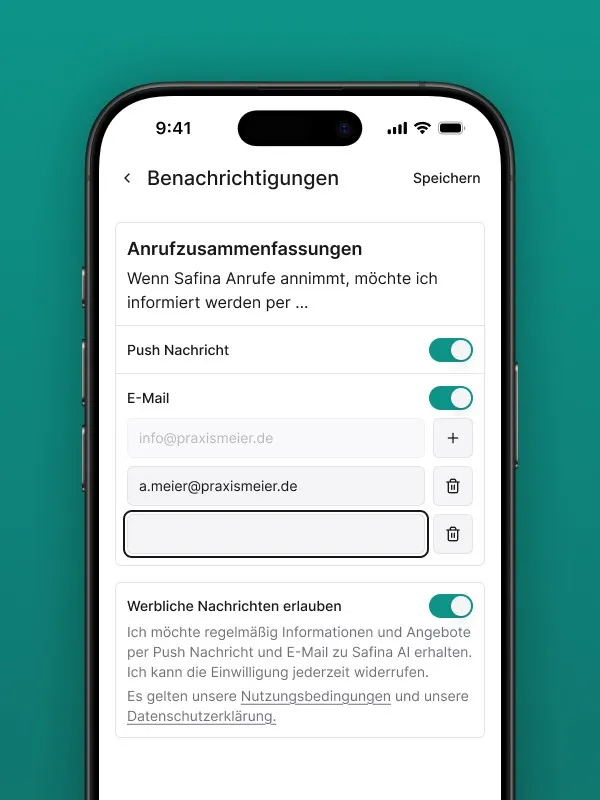
Email Notifications
If you’d rather receive the full call summary as an email in your inbox, you can set that up here.
- Your email address used for registration is already set as the default recipient.
- You can add as many additional email addresses as you like. Simply enter the desired address in the field and confirm.
- This is ideal if, for example, your partner, your back office, or an entire team (e.g., support@yourcompany.com) should also receive the reports.
You can of course remove addresses from the recipient list at any time.
The Perfect Combination for Your Workflow
You don’t have to choose just one method. You can use both channels at the same time. Many of our users appreciate push notifications for immediate information on the go and email as an archive or for structured follow-up on their computer.
Feel free to experiment with which information channel works best for you.
For Technically Advanced Users: Extended CRM Integration via Webhook
Want to integrate your call data even more deeply into your existing systems? For maximum automation and custom workflows, Safina AI offers CRM integration via webhook.
Learn more about it in this article: Connect Safina AI to Your CRM via Webhook
Always Informed, Never Disturbed
With these settings, you have full control over how you stay up to date without losing your focus.
Your Safina Team