
Changing Your Personal Information and Password in Safina

Has your information changed? This short guide shows you how to quickly and easily update your name or password in the Profile tab of your Safina app.

Minimalist vector graphic of a stylized padlock opening, with data lines flowing freely from it as a symbol for unlocked control and IT freedom, blue and green color palette for main elements, white background, clean lines, modern. Horizontal composition, balanced negative space. Subtle, light gray dashed or parallel geometric lines in the background, abstractly evoking data streams, softly placed at the edges. Setup
Karsten Kreh Karsten Kreh

Keeping your account information up to date is important — whether for the security of your account or simply because your name has changed. Here’s how to get it done in just a few steps.

The process in the Safina app is intentionally simple and straightforward.

How to Change Your Information: Step by Step

Whether you want to update your personal details or your password, the starting point is always the same.

Step 1: Navigate to the Profile Tab

First, open your Safina app — on your smartphone or in the web browser. Then navigate to the “Profile” tab. You’ll find it on the far right of the bottom menu bar.
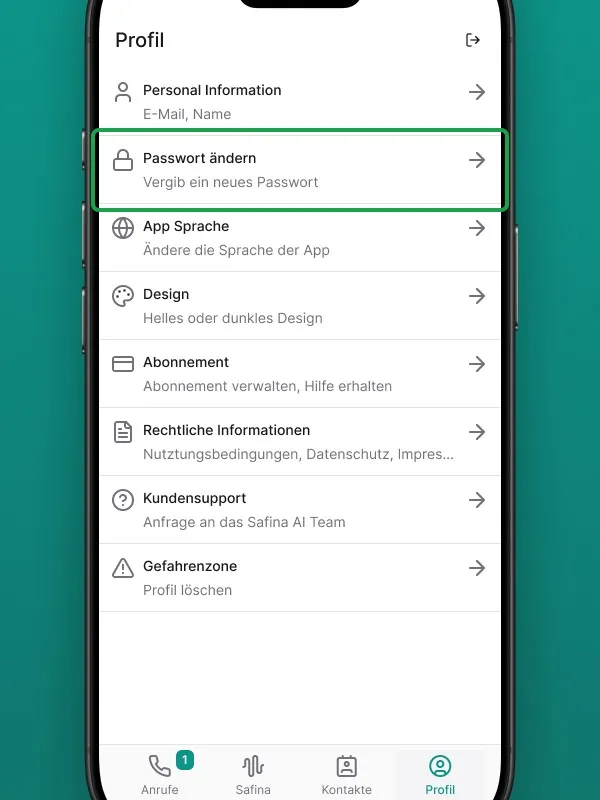
Screenshot of the profile settings in the Safina AI app. The "Change Password" option is highlighted in green, with the subtitle "Set a new password". Other options such as Personal Information, App Language, Design, Subscription, Legal Information, Customer Support, and Danger Zone (delete profile) are visible. Shows the security and customization options for the Safina AI user account.

Step 2: Update Your Personal Information

If you want to change your name or other stored details, follow these steps:

  1. In the Profile menu, tap “Personal Information”.
  2. You’ll see the fields available for editing. Make the changes you need.
  3. Tap “Save” to confirm your updates.

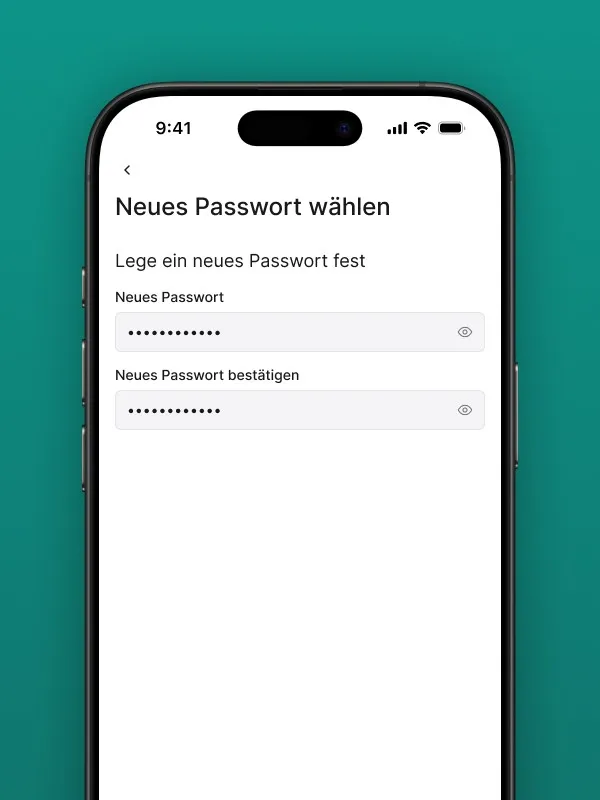
Screenshot of the "Choose new password" screen in the Safina AI app. Shows input fields for "New Password" and "Confirm New Password", each with masked input (dots) and an eye icon to reveal the text. Illustrates the process of changing the password for a Safina AI user account.

Step 3: Change Your Password

For security reasons, you should update your password regularly.

  1. In the Profile menu, select “Change Password” (or a similarly labeled option).
  2. For security purposes, you’ll be asked to enter your current password.
  3. Then enter your new password and repeat it in the confirmation field to avoid typos. We recommend choosing a strong password that includes letters, numbers, and special characters.
  4. Confirm the change by tapping “Update Password” or “Save”.

Done! Your Information Is Up to Date

That’s all there is to it. Your account information is now updated. These changes take effect immediately across all devices you use Safina on.

Your Safina Team

9:41

Safina handled 51 calls this week

46

Trustworthy

4

Suspicious

1

Dangerous

Last 7 days
Filter
EM
Emma Martin 67s 15:30

Wants to discuss the offer for the new campaign and has questions about the timeline.

LS
Laura Smith 54s 14:45

Asking about the order status and when the delivery arrives.

TH
Tim Miller 34s 13:10

Schedule a meeting for the project discussion next week.

Unknown 44s 11:30

Prize promise – probably spam.

SK
Sarah King 10s 09:15

Complaint about the last order, asks for a callback.

MM
Mike Mitchell 95s Dec 13

Wants to discuss a potential collaboration.

AR
Amy Roberts 85s Dec 13

Is your colleague and wants to discuss the project.

JK
Jack Kennedy 42s Dec 12

Asking about available appointments next week.

LB
Lisa Brown 68s Dec 12

Has questions about the invoice and asks for clarification.

Calls
Safina
Contacts
Profile
9:41
Call from Emma Martin
Dec 12
11:30
67s

Wants to discuss the offer for the new campaign and has questions about the timeline.

Key points

  • Call back Emma Martin
  • Clarify timeline & pricing questions
Call back
Edit contact

AI Insights

Caller mood Very good

The caller was cooperative and provided the needed information.

Urgency Low

The caller can wait for a response.

Audio & Transcript

0:16

Hello, this is Safina AI, Peter's digital assistant. How can I help you?

Hi Safina, this is Emma Martin. I wanted to discuss the offer and the timeline.

Thanks, Emma. Are you mainly deciding between the Standard and Pro package for the launch?

Exactly. We need the Pro package and would like to start next month if onboarding is possible in week one.

Say goodbye to your old-fashioned voicemail.

Try Safina for free and start managing your calls intelligently.

Start Your Free Trial