

| Prerequisite | Requirement |
|---|---|
| Safina Plan | Personal or higher |
In the previous article, we learned how to use scenarios to control the conversation flow for different call reasons. Now let’s go one step further and bring those scenarios to life with specific questions and instructions for your Safina.
This is the crucial step to getting perfectly structured data in your call summaries.
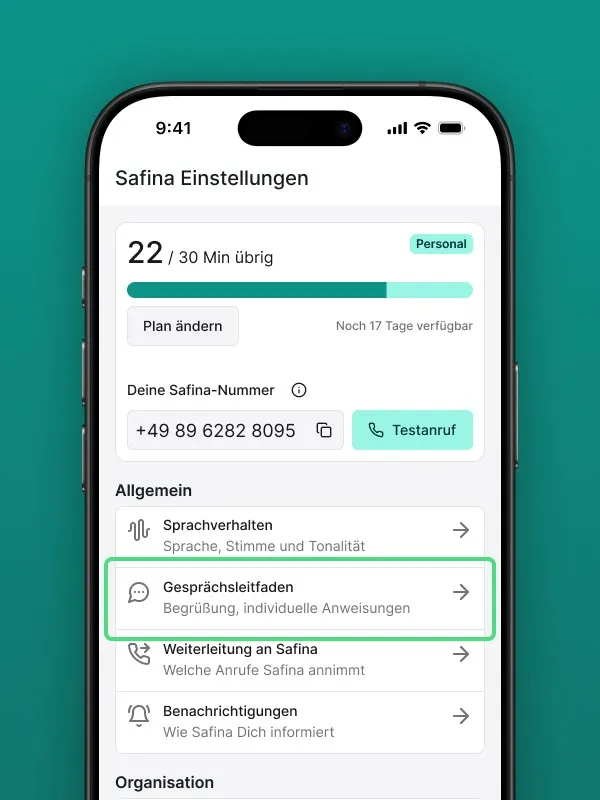
Where Do I Make These Settings?
You’re still in the “Conversation guide”, which you can access through the “Safina AI” tab. Within the guide, you’ll find the “Add” button to create new instructions.
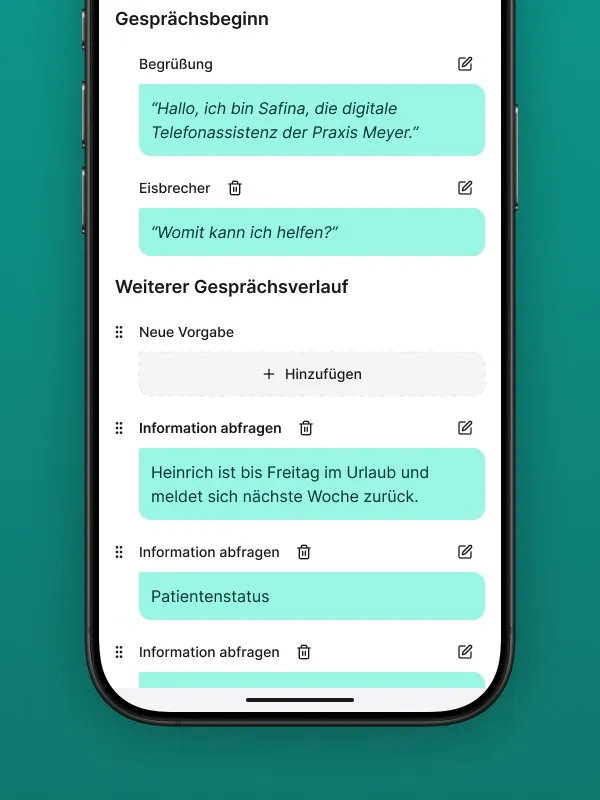
The Conversation Start: Your Greeting and the “Icebreaker”
At the very beginning of the guide, you have the option to write a standardized greeting for your Safina. Right after that, you can define a so-called conversation starter (icebreaker). This sentence can be used to inform the caller right at the start about what your Safina can do and which tasks it can handle.
Important note: Safina reads the greeting and icebreaker exactly as entered. Make sure the text: is written from the first-person perspective (e.g., “I’m Safina, your AI assistant…”), contains no spelling or grammar errors, and complies with our terms of use.
All other conversation instructions are paraphrased by Safina. This applies to the questions defined later, so that the conversation remains natural and fluid.
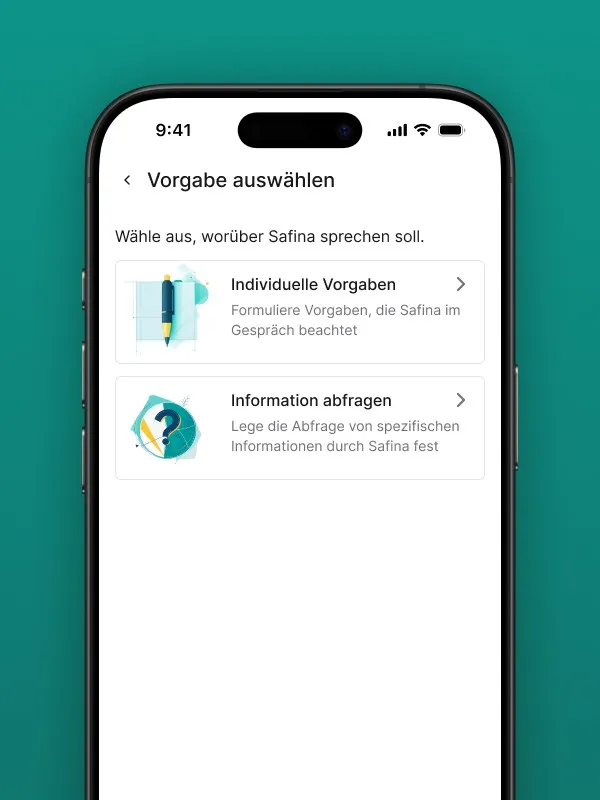
Two Types of Instructions: Freeform vs. Structured
When you add a new instruction, you have two different options to choose from.
1. Custom Instruction (Freeform Text)
This is an open text field where you write an instruction in natural language for your Safina.
- When to use it: This option is ideal for defining your scenarios (e.g., “If a customer calls about an issue, ask the following:”) or for very open questions like “Ask the caller about their detailed request.”
- How Safina handles it: Safina doesn’t read this instruction word for word. It paraphrases it and integrates the instruction as part of the natural conversation flow.
2. Request Information (Structured Data Collection)
This is the most powerful option for getting clean, reusable data. You select a specific question type and write the corresponding question.
- The big advantage: The caller’s response is stored in your call summary in a separate, machine-readable field (e.g., Customer number: 12345). This is perfect for further processing, filtering, or connecting to your CRM system.
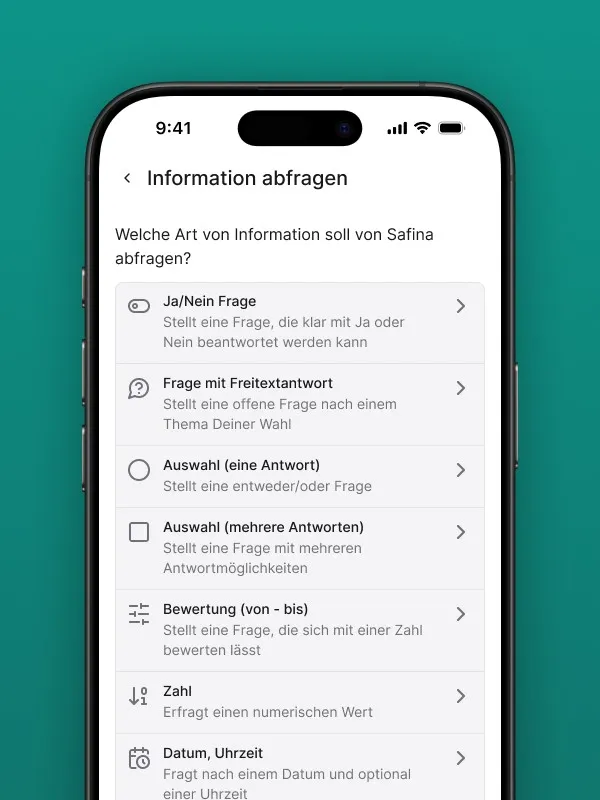
The Different Question Types in Detail
When you choose “Request information,” the following types are available:
Yes/No Question
Ideal for closed-ended queries.
- Example question: “Ask whether the caller is already a customer of ours.”
- Result in the report: Customer status: Yes
Free Text Answer
For open questions where the answer isn’t predictable.
- Example question: “What is the exact description of the issue?”
- Result in the report: Issue description: The heating in the living room no longer warms up.
Choice (Single or Multiple Answer)
When the caller should select from a list you’ve predefined.
- Example question: “Ask whether it’s about Service A, B, or C.”
- Result in the report: Interest: Service A
Rating
To collect a quantitative assessment.
- Example question: “Please rate the service on a scale of 1 to 5.”
- Result in the report: Service rating: 5
Number
For any queries where the result is a pure number.
- Example question: “What is your customer number?”
- Result in the report: Customer number: 4711
Date / Time
For the structured collection of timestamps.
- Example question: “On what date was the device delivered?”
- Result in the report: Delivery date: 07/11/2025
Reorder with Drag & Drop
After creating your questions and instructions, you can simply drag and drop them into the desired order in the list. This lets you control the logical flow of the conversation exactly as you see fit.
Your Custom Interview
By combining scenarios with these specific question types, you create a highly efficient, custom-built “interview.” You ensure that from every important call, you receive exactly the information you need — in a perfectly structured format.
Your Safina Team