

Five Minutes From Download to Live
Setting up Safina doesn’t require a technician, new hardware, or a complicated phone system migration. The entire process takes most users under 5 minutes, and you can do it from your couch.
Here’s what the setup looks like, step by step.
Step 1: Download and Create Your Account
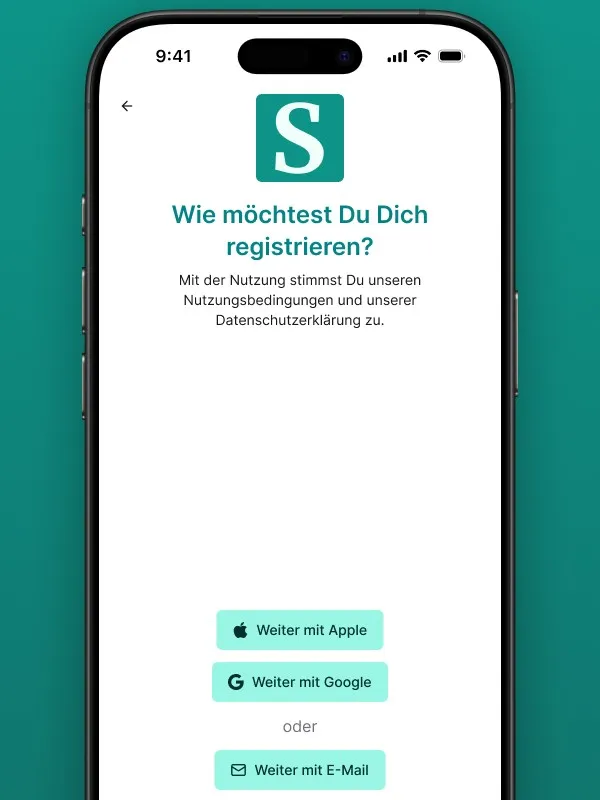
Download the Safina app from the App Store or Google Play. Sign up with your email (or use Apple/Google sign-in), confirm your email with one click, and you’re in. No lengthy verification process, no faxing documents, no waiting for approval.
Step 2: Configure Your AI Assistant
After your first login, a setup wizard walks you through the key settings.
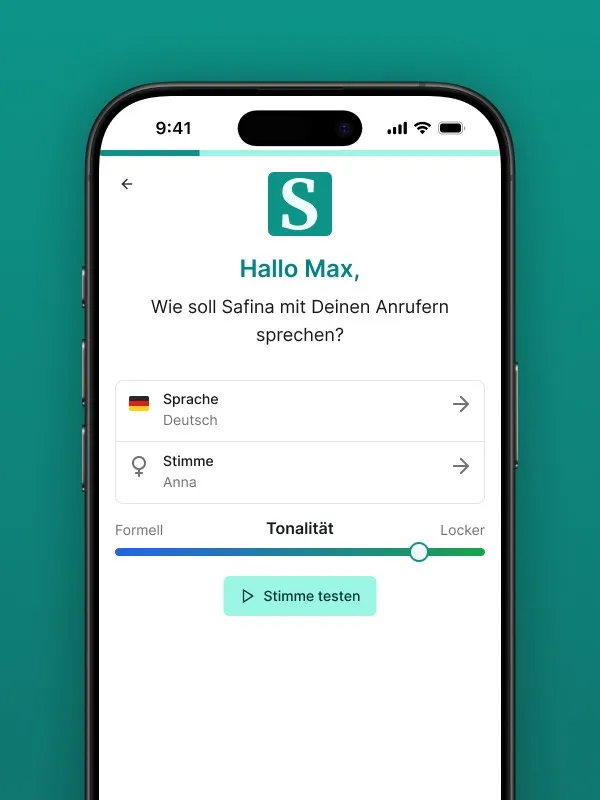
You’ll also select a country code for your personal Safina number. This is the number your phone will forward calls to. We currently support Germany, Austria, the United Kingdom, Spain, South Africa, and more countries are being added based on user requests.
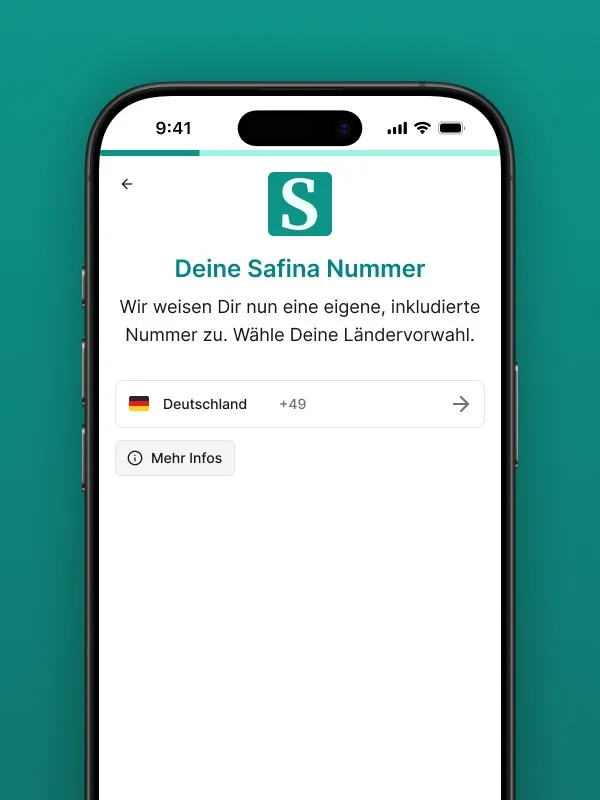
This is where you tell Safina how to represent your business. You’ll set:
- Your business name (so Safina greets callers correctly)
- Your greeting style (friendly, professional, or custom)
- What to ask callers (name, reason for calling, urgency, appointment preference)
- What information to share (business hours, pricing, location, common answers)
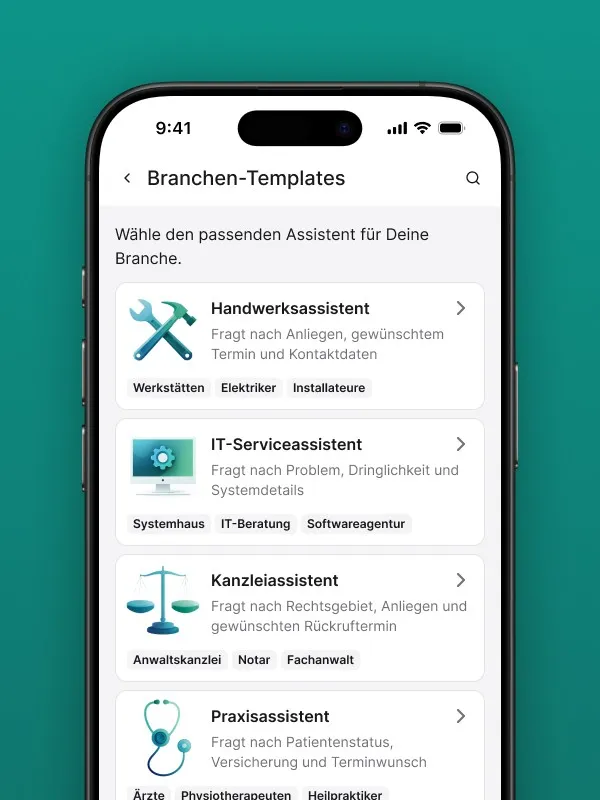
Safina offers industry-specific templates that come pre-loaded with the right questions for your type of business. A plumber’s template asks different questions than a law firm’s. For example, a trades template includes predefined workflows for emergencies (type of issue, urgency), quotes (desired service, scope), and appointment scheduling. Pick a template, tweak it, and you’re ready.
Step 3: Set Up Call Forwarding
This is the only step that involves your phone’s settings. You need to forward calls to Safina’s number when you can’t (or don’t want to) answer.
There are several forwarding options:
| Forwarding Type | What It Does | Best For |
|---|---|---|
| When unanswered | Forwards after X rings | Catching calls you miss |
| When busy | Forwards when you’re on another call | High-volume businesses |
| When unreachable | Forwards when your phone is off/no signal | Field workers, travelers |
| Always | Every call goes to Safina | Full AI reception |
Most businesses start with “when unanswered” or a combination of the first three. This way, you still answer calls you can, and Safina catches everything else.
Step 4: Test It
Call your own number from another phone. Let it ring. Safina picks up. Have a test conversation. Check the summary in your app. Done.
Keeping Your Existing Number
One of the most common concerns we hear: “Do I have to change my phone number?” The answer is no.
Safina works through call forwarding, which means your existing number stays exactly as it is. Your callers, your business cards, your Google listing, your website, nothing changes. You’re just adding a safety net behind your existing number.
This also means you can try Safina risk-free. If you decide it’s not for you, just turn off call forwarding. Your phone goes back to exactly how it was before.
There’s no number porting, no SIM changes, and no carrier negotiations involved. Whether you’re on Telekom, Vodafone, O2, Swisscom, A1, or any other carrier, call forwarding is a standard feature that works the same way.
Call Forwarding: The Details
Call forwarding sounds simple, and it mostly is. But there are a few things worth knowing.
GSM codes are the fastest way to set up forwarding on mobile phones. They look like this: **61*[Safina number]**[seconds]#. Safina provides the exact codes for your setup, so you just dial them once.
Carrier apps and phone settings menus also offer forwarding options if you prefer a visual interface.
Landlines and VoIP systems (like a FRITZ!Box) have their own forwarding settings, usually accessible through a web interface. Safina provides carrier-specific guides that walk you through each setup.
Business phone systems (PBX) can also forward to Safina. If you have an office system with multiple extensions, your IT admin can configure a forwarding rule in a few minutes.
The key point: if your phone system can forward calls (and virtually all of them can), it works with Safina.
What Happens After Setup
Once call forwarding is active, here’s what your day looks like:
- A call comes in that you can’t answer
- Your phone forwards it to Safina after a few rings
- Safina picks up, greets the caller by your business name, and has a conversation
- The caller hangs up, satisfied that their request was heard
- You receive a push notification with a summary
- You review the summary and decide when to follow up
No more checking voicemail. No more wondering who called while you were in a meeting. No more losing clients because you were busy with another one.
For businesses that handle dozens of calls per day, this changes the entire workflow. Check out how different industries use Safina to see what this looks like in practice.
Common Setup Questions
“Can I forward only certain calls?” Most phone systems let you set conditional forwarding (busy, no answer, unreachable). Some business systems can also forward based on time of day or caller ID.
“What if I want Safina to answer some calls and I answer others?” Use “when unanswered” forwarding. If you pick up, Safina never gets involved. If you don’t, Safina catches it. Simple.
“Can I change my greeting later?” Yes. You can update your greeting, questions, and call handling preferences anytime in the app. Changes apply immediately.
“Does setup cost anything?” No. The setup is free. You only pay for your chosen plan, and there’s a free trial to start.
“What if I have trouble with call forwarding?” Safina’s support team can walk you through the forwarding setup for your specific phone and carrier. It’s the one step that varies by device, but we’ve written guides for every major combination.
Next Steps After Going Live
Once you’re set up and taking calls, there are a few things that will help you get the most out of Safina:
- Review your first 5-10 call summaries to make sure Safina is asking the right questions
- Adjust your greeting if callers react to specific wording
- Add common Q&A pairs so Safina can answer frequent questions directly
- Check your call statistics to see peak call times and patterns
- Explore integrations to connect Safina with your calendar, CRM, or workflow tools
Most users find their ideal configuration within the first week. After that, Safina runs in the background, doing its job quietly while you do yours.