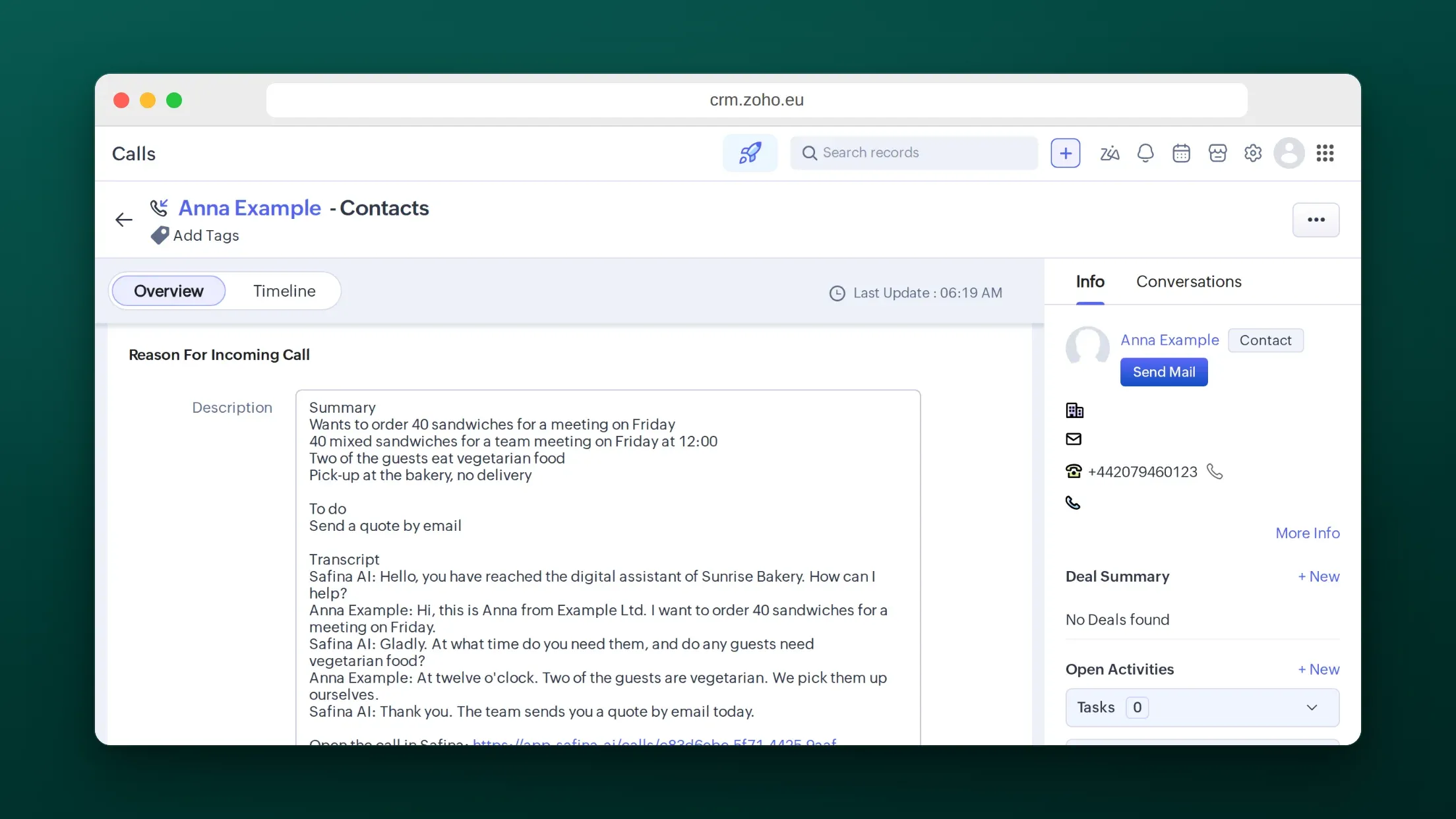
How the Connection Works
For more than the call log, the connection runs through a webhook: after every call, Safina sends the call data to an automation tool such as Zapier, Make or n8n. Each of these tools has a Zoho CRM app that creates or updates the records.
Safina (call ends) -> Webhook (call.ended) -> Zapier / Make / n8n -> Zoho CRM
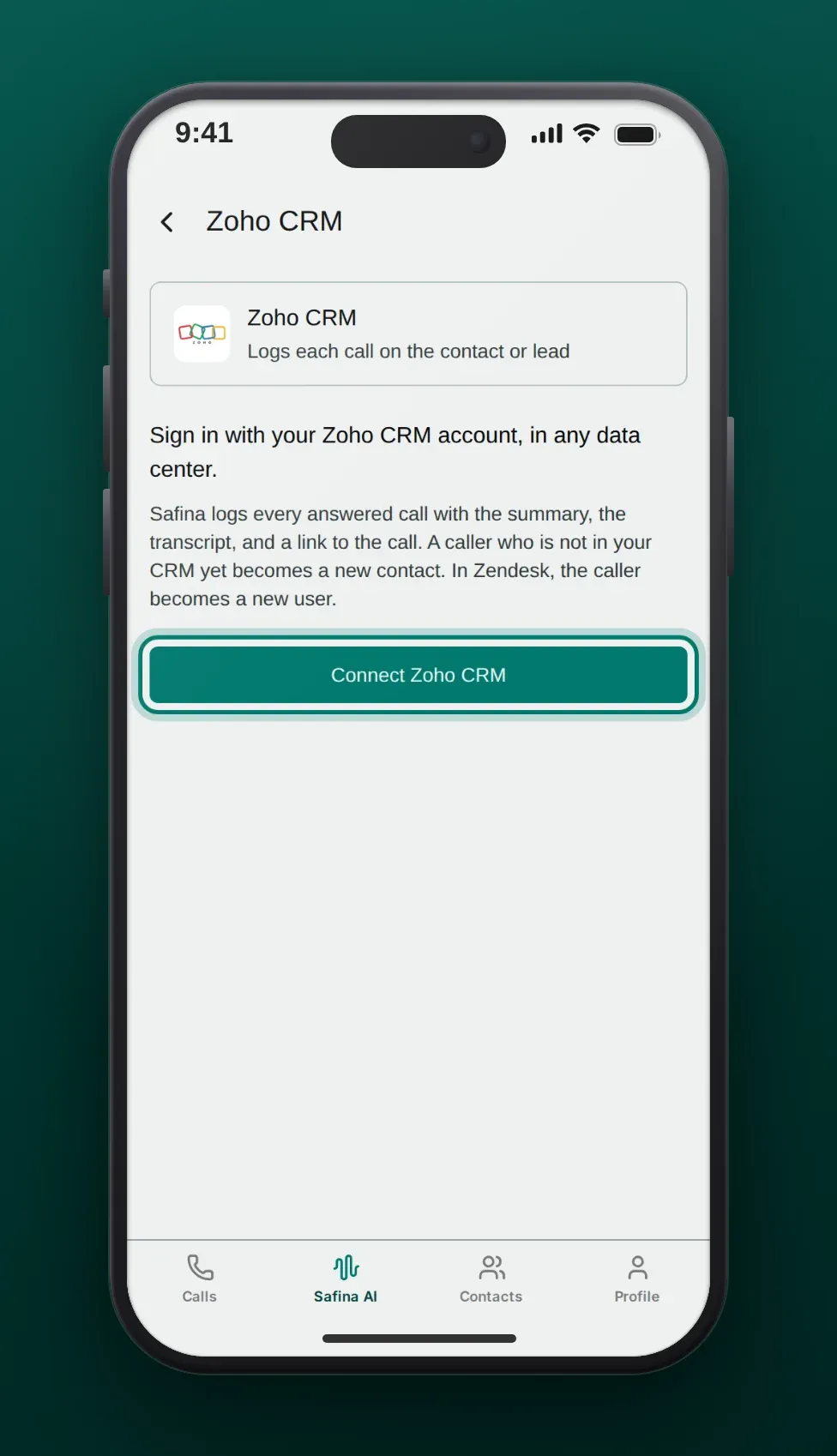
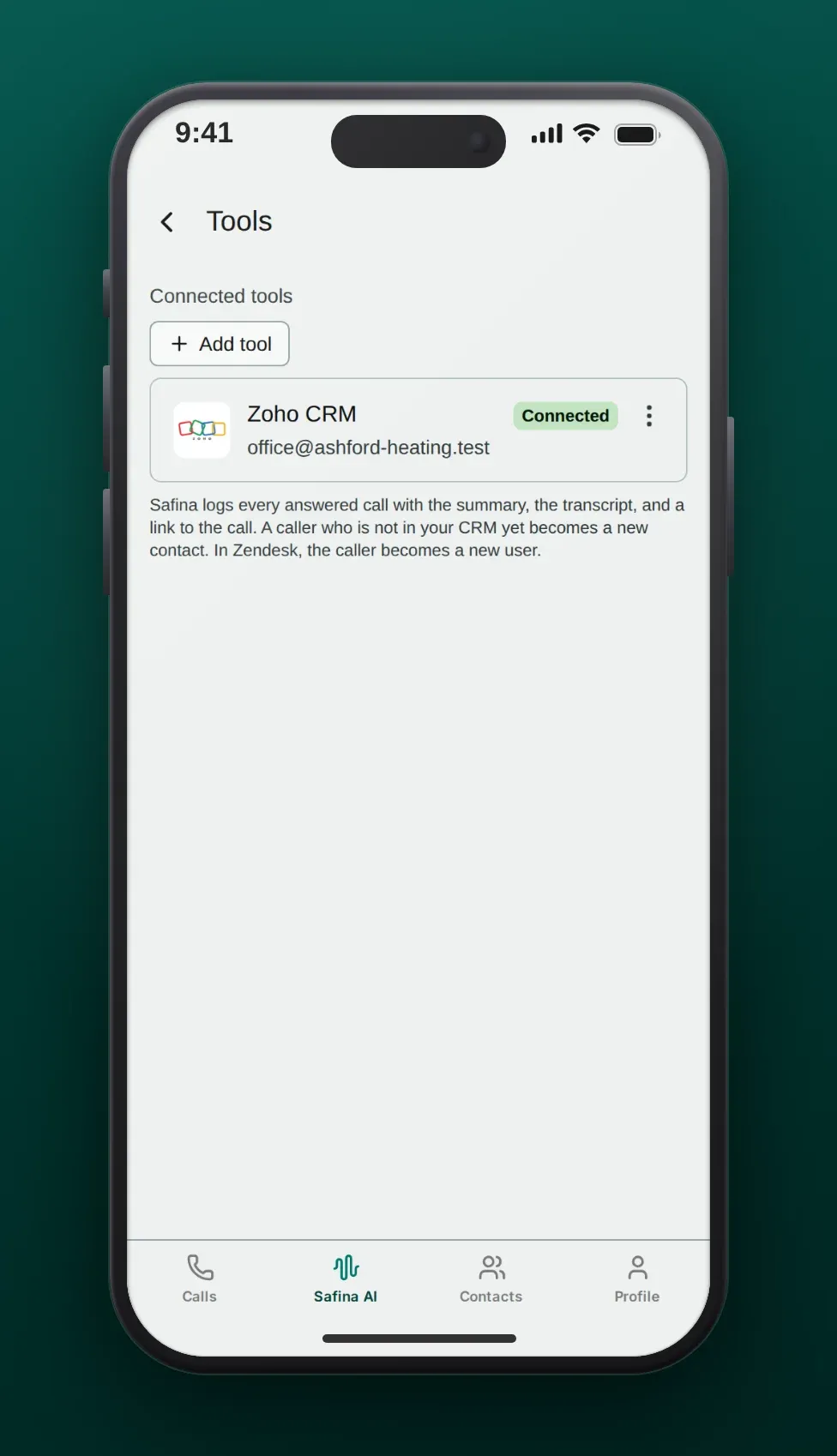
You can also connect Zoho CRM directly in the Safina app. Safina then logs every answered call in Zoho CRM by itself, on the caller’s contact or lead. See Log every Safina call in your CRM and tools.
What You Can Do in Zoho CRM
Find or Create the Caller
Search Zoho CRM by the caller’s phone number. If no record exists, create a contact or a lead with the name and the number that Safina captured.
Log the Call as a Note
Add the reason for calling, the key points and the to-dos as a note. Your team sees the call on the record without opening Safina.
Create Tasks for Urgent Calls
Add a filter on the urgency. An urgent call then creates a task with a due date for the owner of the record.
Setup in 4 Steps
- Create a webhook trigger in Zapier (“Webhooks by Zapier” > “Catch Hook”), Make (“Custom webhook”) or n8n (Webhook node) and copy the URL.
- Add the URL in Safina: open the Safina AI tab, then “Call Logging” > “Webhooks”, add a webhook, paste the URL, choose POST, save and activate it.
- Add the Zoho CRM steps: search by phone number, create the contact or lead if needed, then add the note.
- Test and activate: call your Safina number, check the record in Zoho CRM and turn the automation on.
The webhook fields and the payload are in Connect Safina AI to Your CRM via Webhook.
Use Cases
Trades Business: Job Requests
A heating company gets calls about broken boilers. Safina captures the address and the urgency. The scenario creates a lead in Zoho CRM and a task for the technician on call.
Agency: Returning Clients
An existing client calls about a new project. The automation finds the client by number and adds the call as a note, so the account manager sees it before the next meeting.
Frequently Asked Questions
Does Safina have a native Zoho CRM integration?
Yes. Connect Zoho CRM once in the Safina app under Safina AI > Call Logging > Tools. Safina then logs every answered call on the caller’s contact or lead. For more, such as tasks, use a webhook and Zapier, Make or n8n.
Which plans do I need?
You need the Safina Pro or Business plan. The webhook route also needs an automation tool; on Zapier, “Webhooks by Zapier” needs the Professional plan or above. The direct call logging needs no automation tool.
Does it work with Zoho Bigin?
Safina sends the same webhook to every system. Whether your automation tool has a Bigin app decides how you write the data.
Can I send the same call to other tools too?
Yes. Add more steps to the same scenario, or add a second webhook in Safina.
