
| Prerequisite | Requirement |
|---|---|
| Safina plan | Pro or Business |
| Your role in Safina | Owner or admin of the team |
| Your tool | An account in the tool and a user who may install or authorize apps in it |
Safina writes every call it answers into the tools your team already uses. You connect a tool once in the Safina app. After each answered call, Safina logs the call there with the summary, the to-dos, the transcript and a link to the call. In a CRM, Safina also finds the caller’s contact by phone number, or creates it for a new caller. Eight tools work directly, without a webhook, Zapier or Make. Everything else connects through a webhook or the Safina API.
Tools that Safina connects to directly
| Tool | What Safina writes |
|---|---|
| HubSpot | Finds the caller’s contact by phone number or creates it. Logs one call on the contact’s timeline: inbound, completed, with the duration and both phone numbers. |
| Pipedrive | Finds the caller’s person by phone number or creates it. Logs one call log on the person, with the duration and both phone numbers. |
| Salesforce | Finds the caller’s contact or lead by phone number. If there is none, it creates a contact. Logs one completed task of the type Call on it. |
| Zoho CRM | Finds the caller’s contact or lead by phone number. If there is none, it creates a contact. Logs one record in the Calls module on it. |
| Zendesk | Finds the caller as an end user by phone number or creates the user. Creates one ticket per call with the caller as requester and the tag safina. The call notes are a private comment, so the caller gets no email. |
| Notion | Adds one page per call to the database you pick. If the database has a phone number and a date property, Safina fills the first of each with the caller’s number and the call start. |
| Slack | Posts one message per call into the channel you pick. |
| Jira | Creates one issue per call in the project you pick, of the type Task if the project has it. |
Every entry has the title “Call from [caller], answered by Safina” and the same call notes in three parts: Summary (reason for the call and key points), To do (the action items) and Transcript. At the end, a link opens the call in the Safina web app. If a tool limits the length of a text, Safina shortens the transcript first. The link always stays.
Safina does not send the audio recording. The texts use the email language of the Safina account. Notion, Slack and Jira get no contacts. A caller with a hidden number has no number to search for, so Safina logs the call without a contact.
Each tool’s page shows what an entry looks like there and covers the details of that tool, for example required fields in Jira or triggers in Zendesk.
Connect a tool
- In the Safina app, open the Safina AI tab. Under Integration & Automation, tap Call Logging.
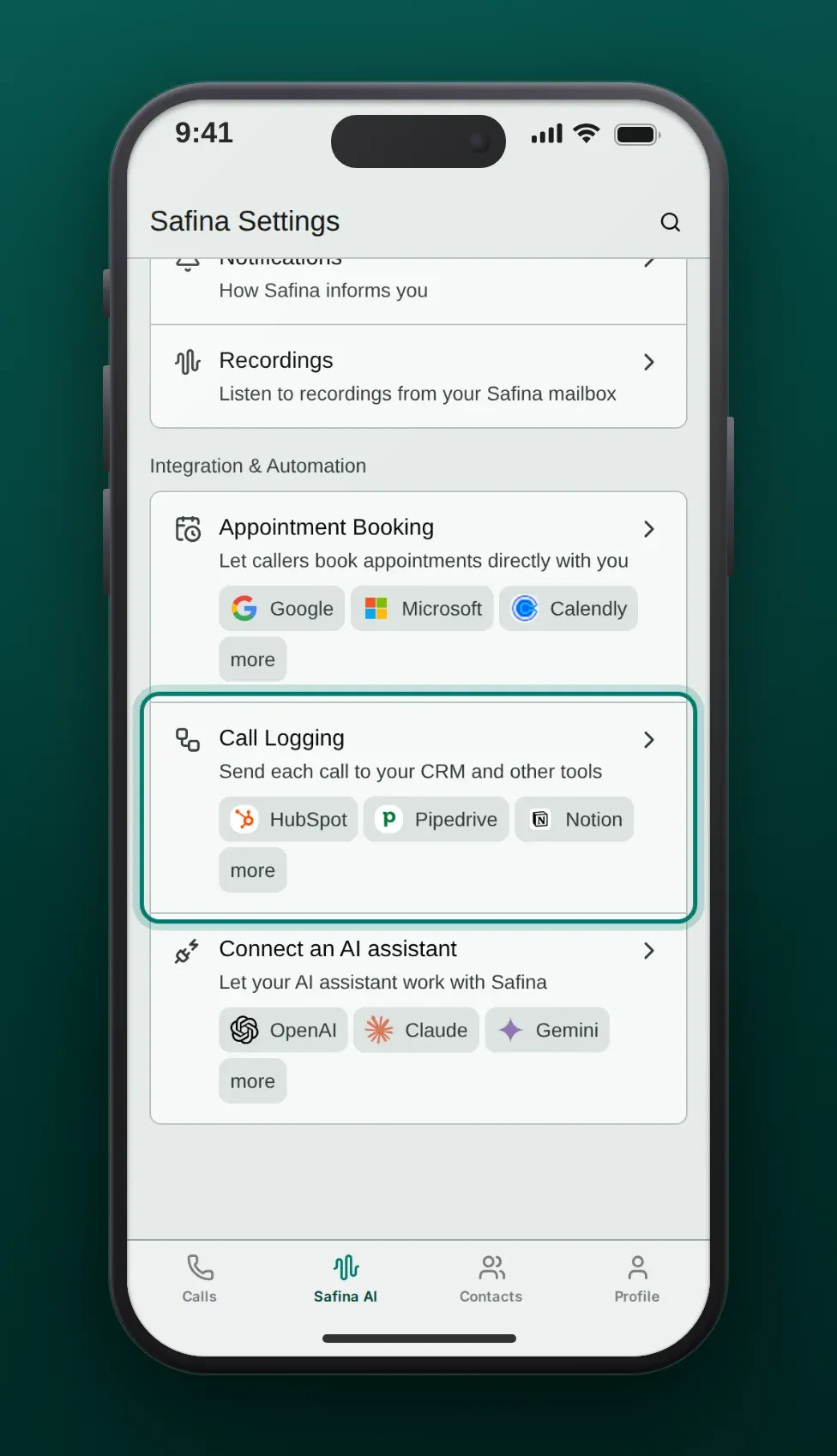
- Tap Tools.
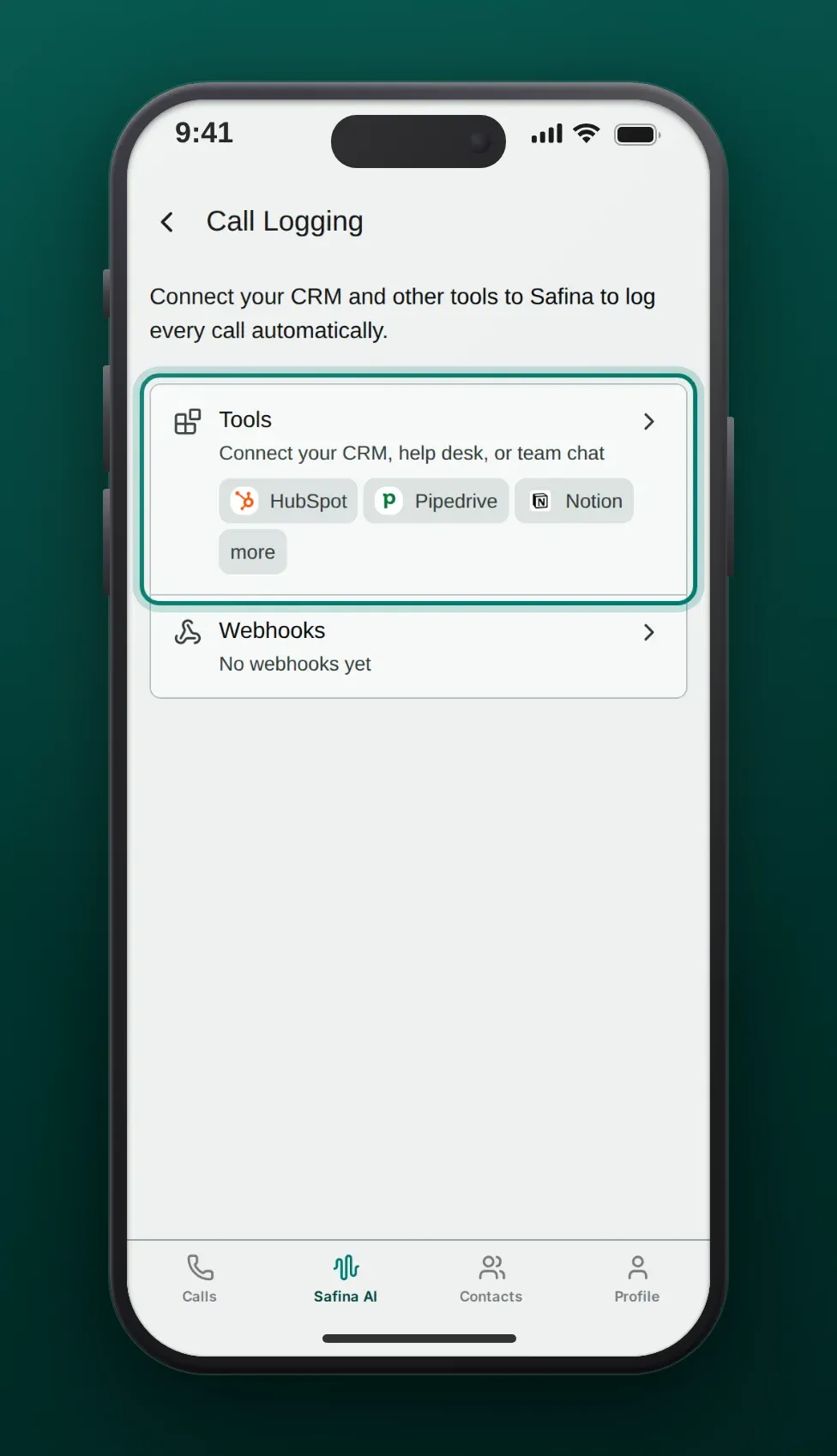
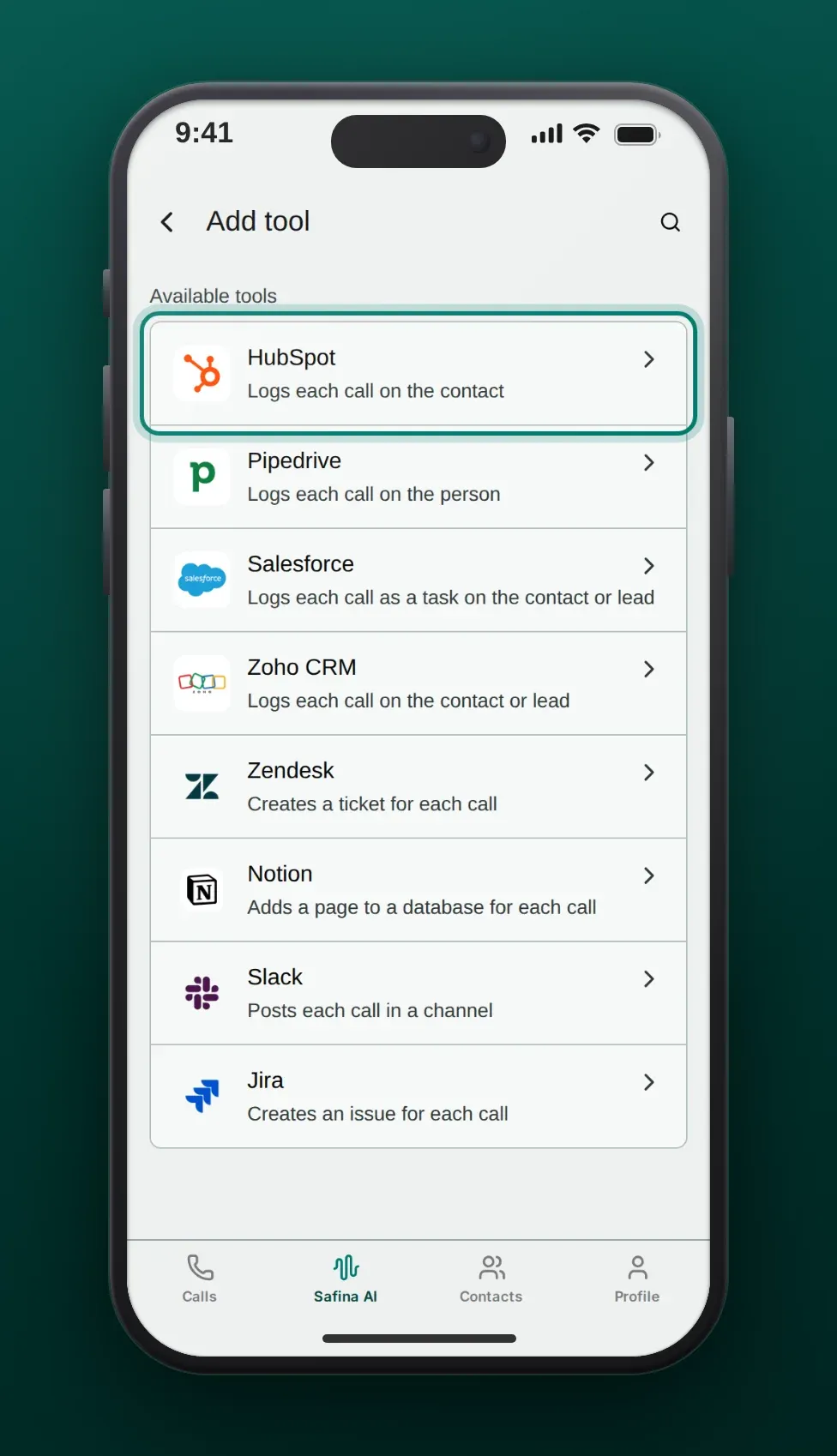
- Tap Add tool.
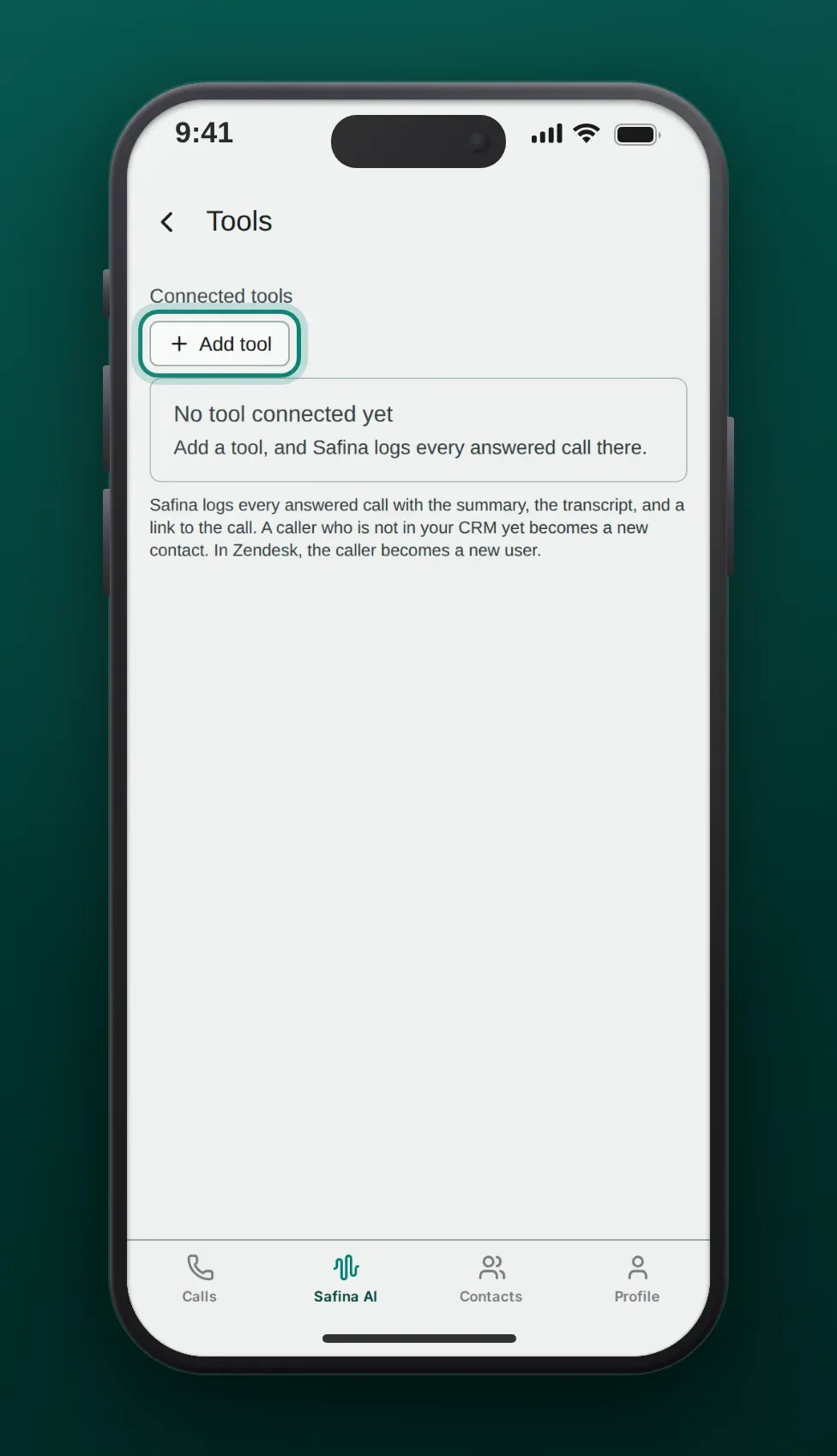
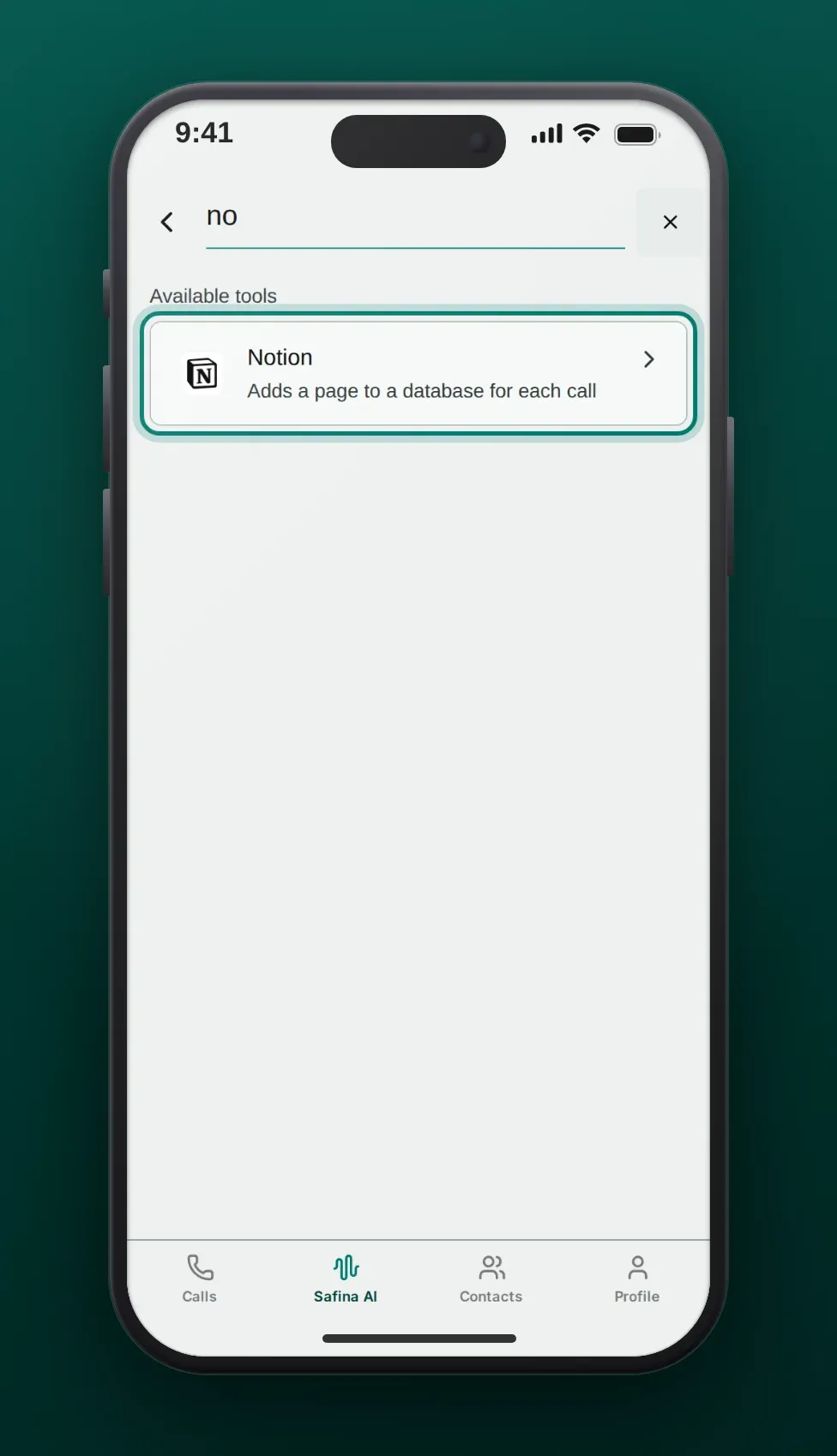
- Tap the tool. To find it faster, tap the magnifying glass at the top and type its name. The pictures show HubSpot as an example.
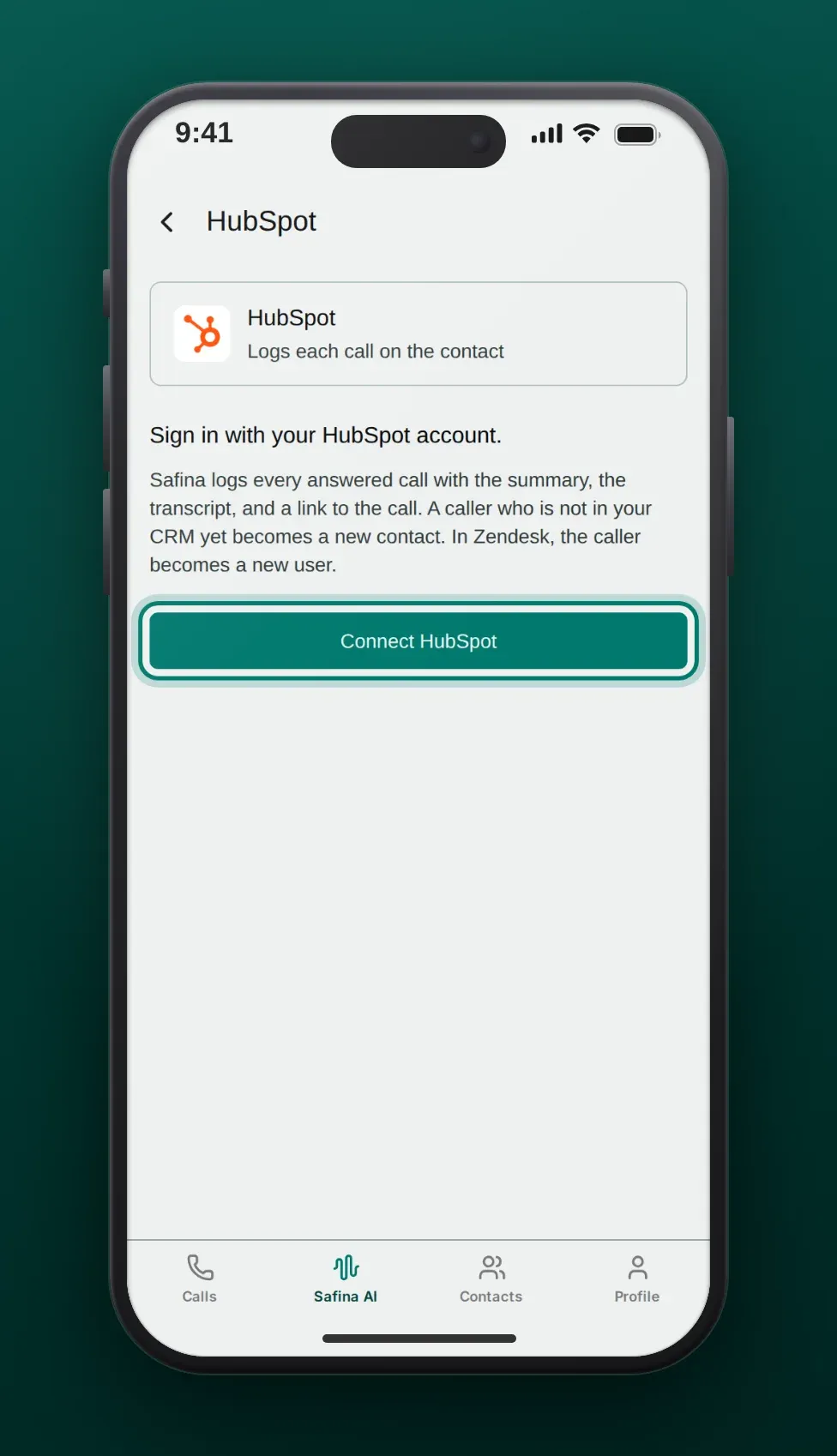
- The page of the tool shows what Safina writes there and what it needs from you. Tap Connect HubSpot.
- For Zendesk only: type the subdomain of your Zendesk account first, for example
acmefor acme.zendesk.com, then tap Continue. - The tool opens. Sign in, choose your account and allow access for Safina’s app.
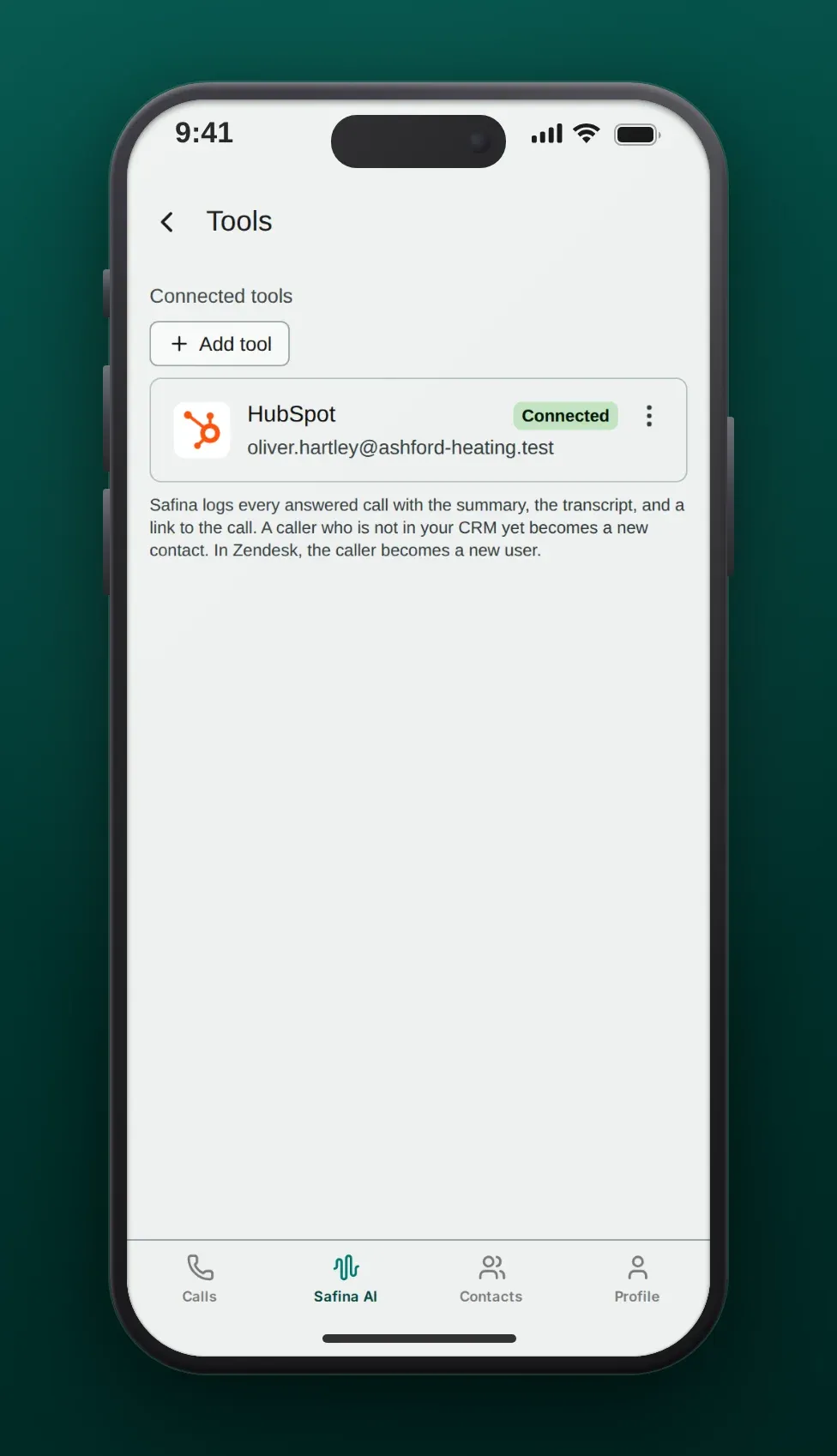
- You return to the Tools page in Safina. The tool now says Connected and shows the account that you connected.
- For Notion and Jira: choose where Safina logs the calls. After the sign-in, Safina asks for the Notion database or the Jira project. If Safina can reach only one, it takes that one by itself. If the row says Not set up, tap the row (⌃⌄) and pick one. To pick another one later, tap the row again.
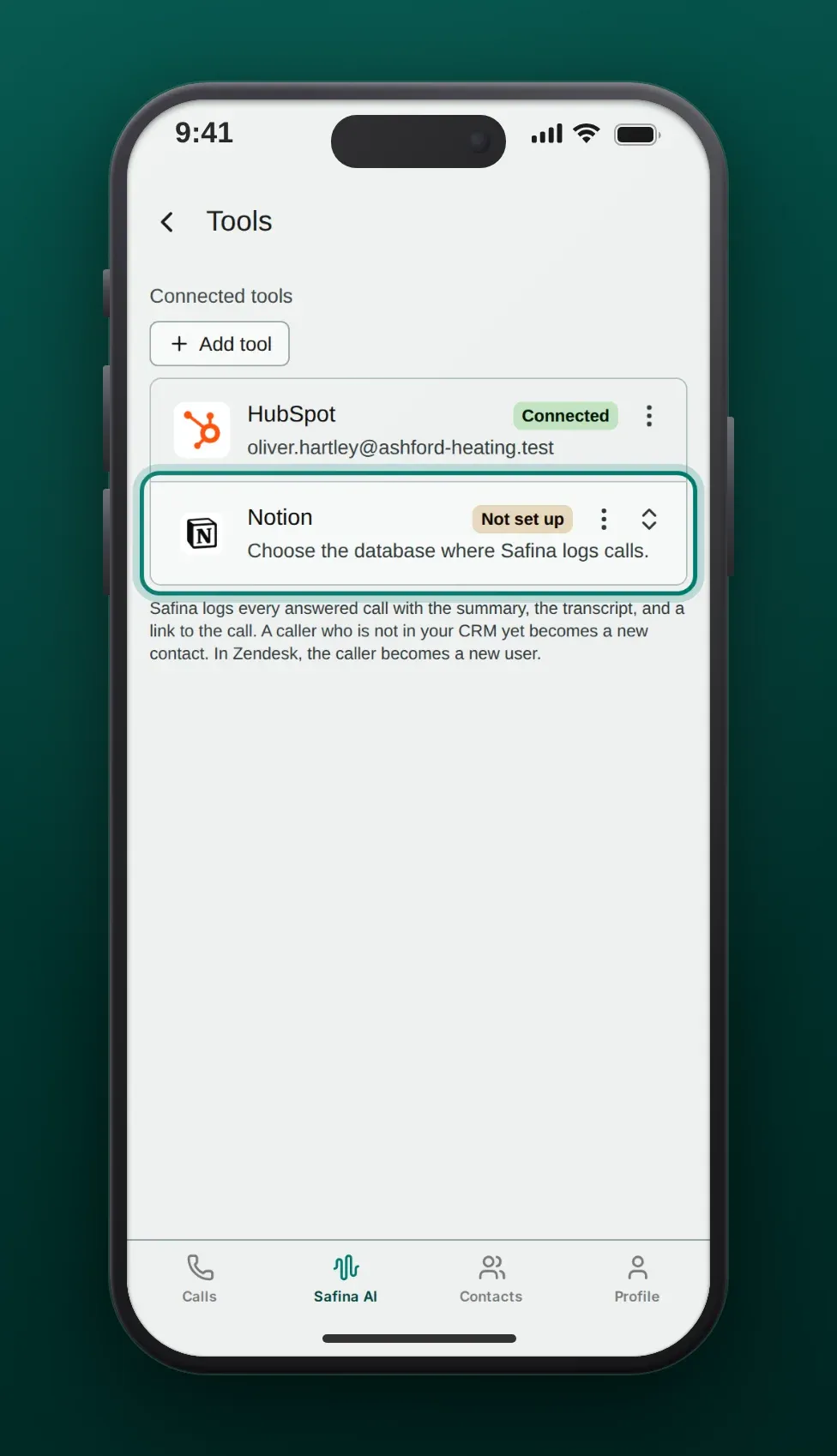
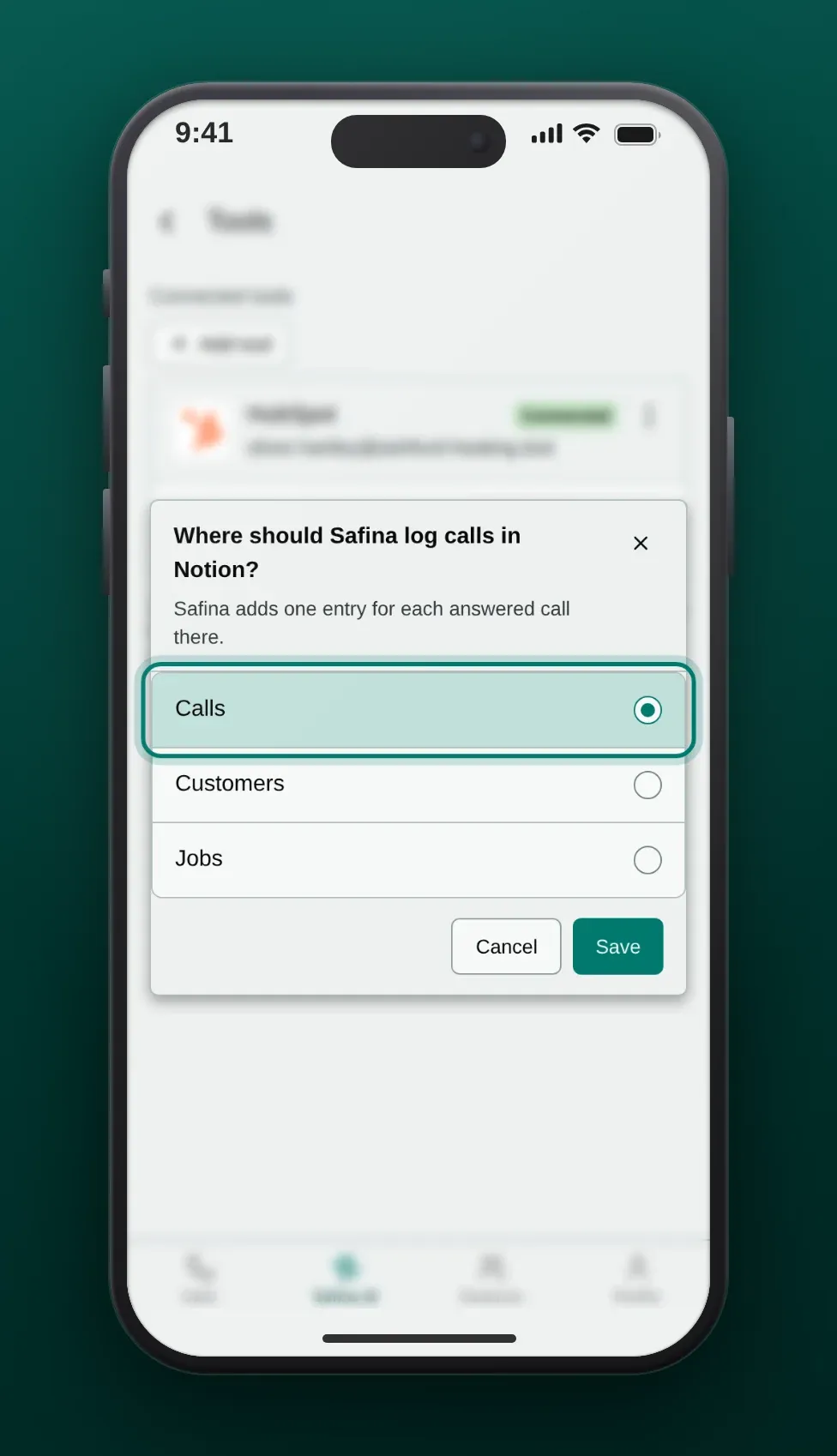
From now on, Safina logs every call it answers. Calls from before the connection are not logged afterwards.
Good to know per tool
The name of each tool opens its page with more details.
- Notion: In Notion’s sign-in, share the database with Safina. Safina can only pick a database that you shared there.
- Slack: You pick the channel in Slack’s sign-in. To post into another channel, disconnect Slack and connect it again.
- Jira: Jira Cloud only. If the project has required fields without a default value, Safina cannot log calls there.
- Zendesk: Your own triggers still run on the new tickets.
- Salesforce: Safina connects to production orgs, not to sandboxes. Your Salesforce edition must allow API access.
- Zoho CRM: The sign-in works for Zoho accounts in every data center except China.
When a tool refuses the sign-in
A tool can refuse Safina’s sign-in, for example when someone removes Safina’s app in the tool or archives the Slack channel. The row of the tool on the Tools page then shows Sign-in expired, and the team owner gets one email. The Tools row on the Call Logging page shows the warning too. Tap the row of the tool and sign in once more. Calls that Safina answers before you connect again are not logged in that tool.
If the Notion database or the Jira project is gone or no longer shared, the row shows Not set up. Tap the row and pick another one.
Disconnect a tool
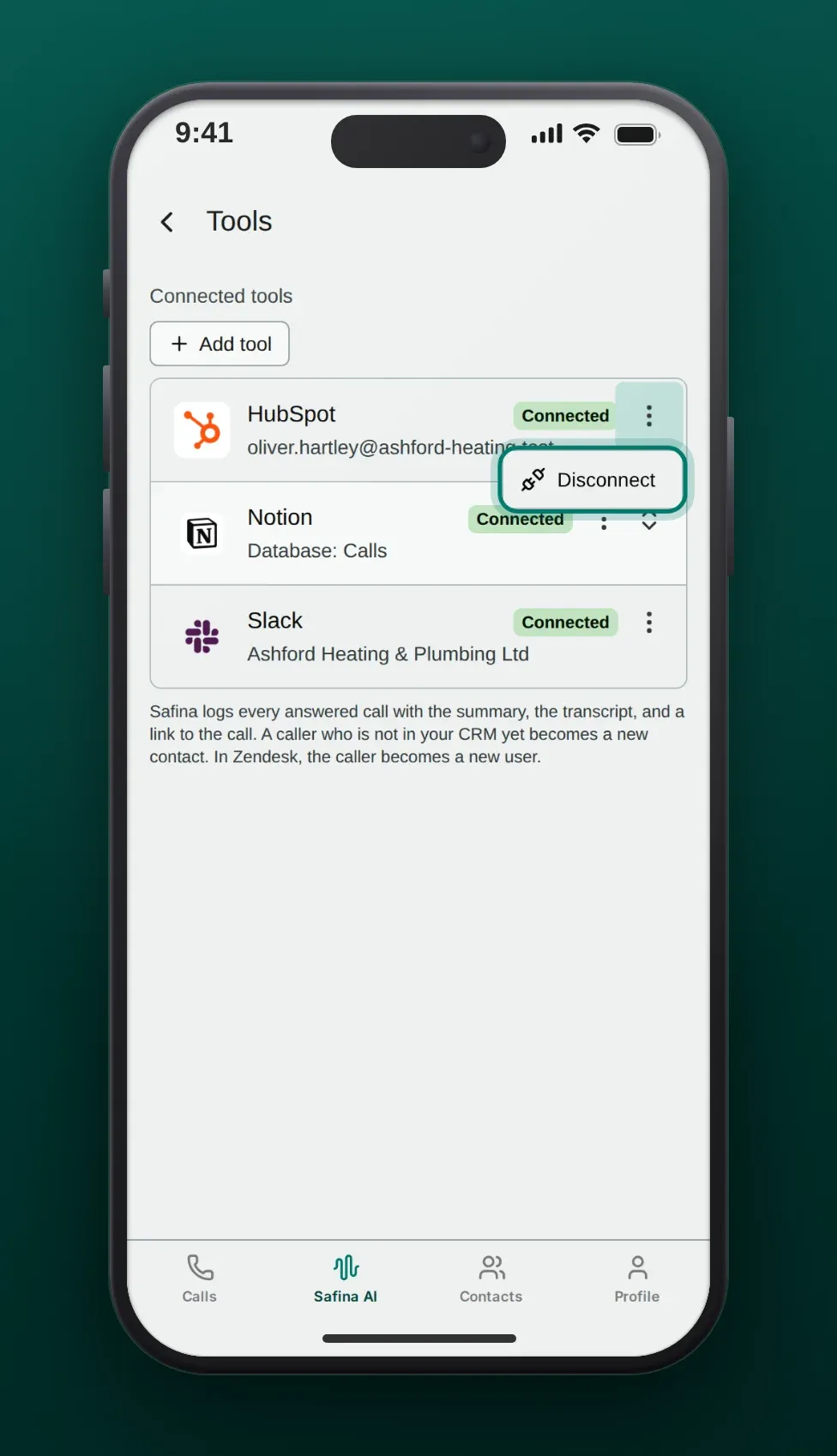
On the Tools page, open the options menu (⋮) in the row of the tool, tap Disconnect and confirm. Safina stops logging calls there. Calls that are already logged stay in the tool. For Slack, also remove Safina’s app in Slack if you no longer want it in your workspace.
Use several tools at once
You can connect as many of the tools as you like. Safina then logs each call in each of them, for example in your CRM and in a Slack channel. A problem in one tool does not stop the others.
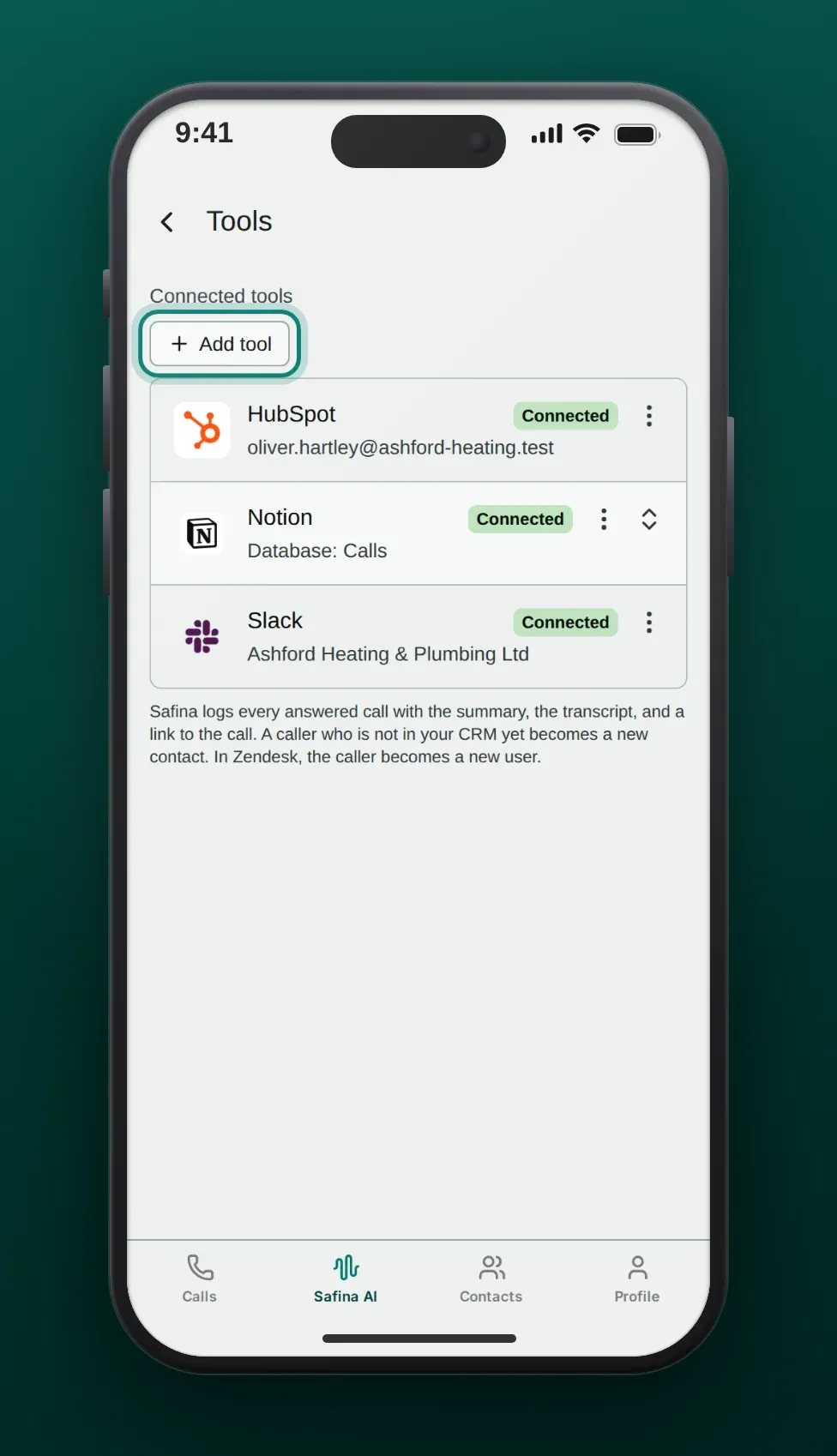
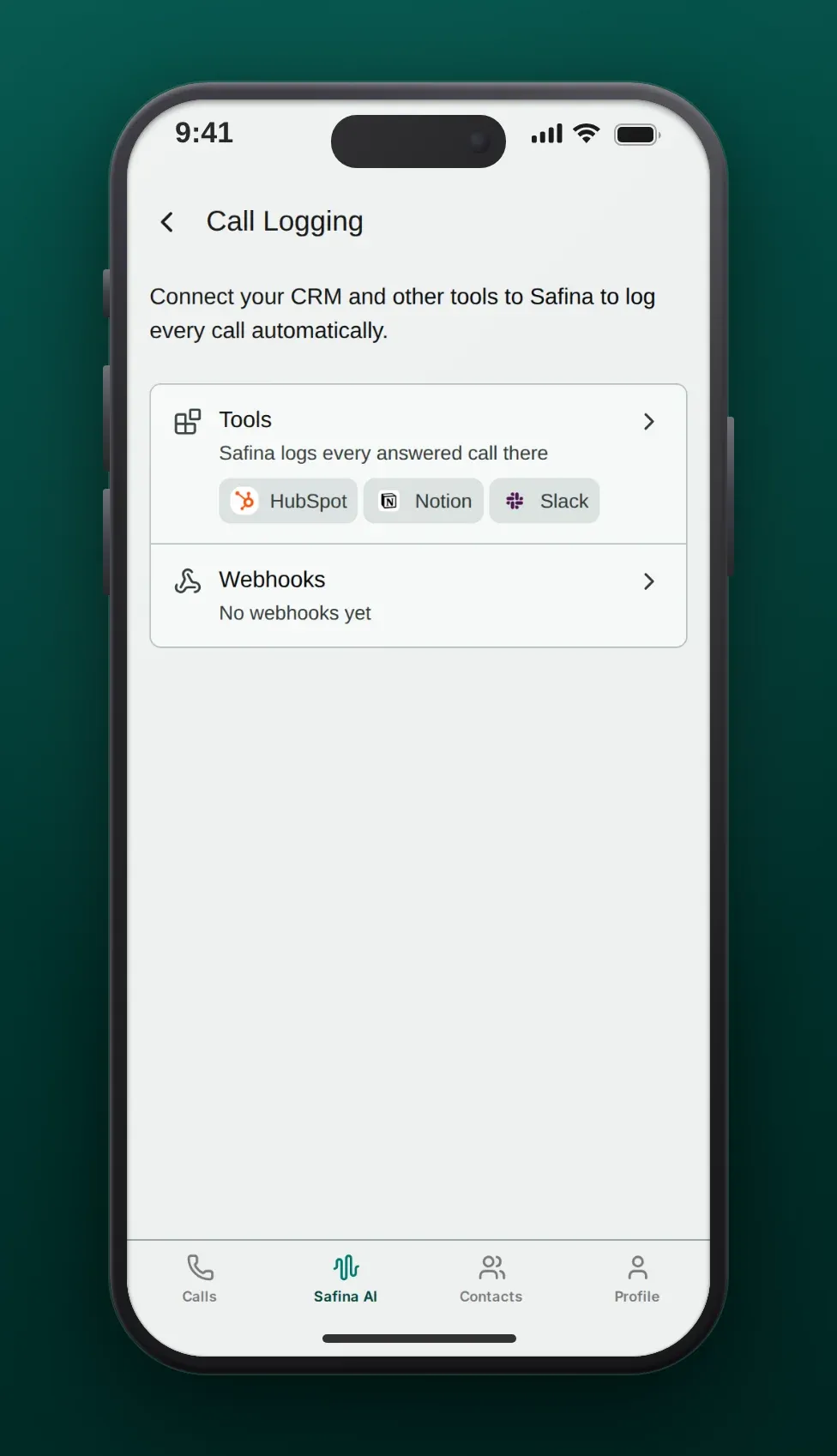
The Tools row on the Call Logging page then shows the logos of your connected tools.
Other integrations
The direct connection logs the call. For anything beyond that, Safina has these routes:
| You want | Use |
|---|---|
| A deal for every new caller, custom fields, filters, or a CRM that is not listed above | A webhook to Zapier, Make or n8n. Safina sends the event call.ended after every call. |
| Your own script or tool that reads calls and contacts | A Safina API key |
| Appointments booked during the call | Google Calendar or Outlook |
| Callers in an email list | Brevo through a webhook |
| Claude, ChatGPT or Copilot working with your calls | Safina’s MCP server |
All integrations are on the integrations page.
Frequently asked questions
Which Safina plan do I need?
Pro or Business. Basic does not include call logging.
Do I still need a webhook or Zapier?
Not for the call log: the direct connection logs the calls by itself. A webhook is useful when you want more than the call log, for example a deal for every new caller or a tool that is not in the list above.
Can a call show up twice?
Safina logs each call once. If Safina has to try a delivery again, it first looks for the entry that it already made. Slack is the exception: Slack cannot find a message again, so in rare cases a summary can show up twice in the channel.
What happens if a tool is not available?
Safina tries to log the call up to three times. If the tool refuses the sign-in, the app shows Sign-in expired (see above).
Which data does Safina read in my tools?
In a CRM and in Zendesk, Safina searches the contacts for the caller’s phone number. In Notion and Jira, Safina lists the databases or projects that you can pick. To prevent duplicates, Safina also looks for the entries that it made itself. It does not read deals, emails or other data. More about data protection: Privacy and compliance.
Your Safina Team
