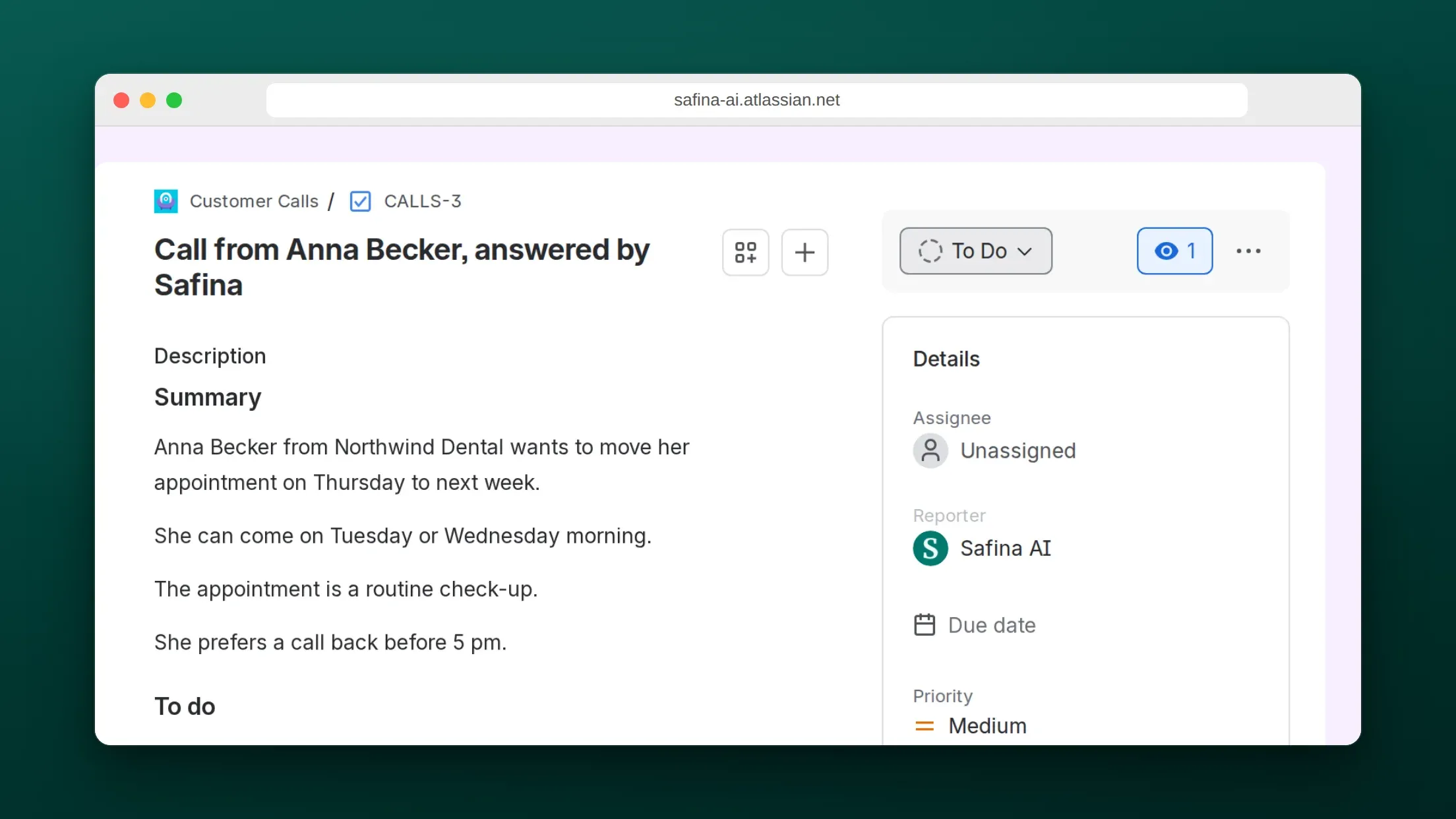
Safina answers your phone, and the Jira integration turns each answered call into an issue in a Jira Cloud project. The issue holds the reason for the call, the to-dos and the full transcript, plus a link back to the call in Safina. Nobody types up phone notes, and phone requests sit in the same backlog as everything else.
Option 1: Connect Jira directly in Safina
You need the Safina plan Pro or Business and a Jira Cloud site (an address that ends in atlassian.net). Jira Data Center and Jira Server are not supported.
- In the Safina app, open Safina AI > Call Logging > Tools. Tap Add tool, tap Jira, then Connect Jira. In the browser, you can open Jira in Safina directly.
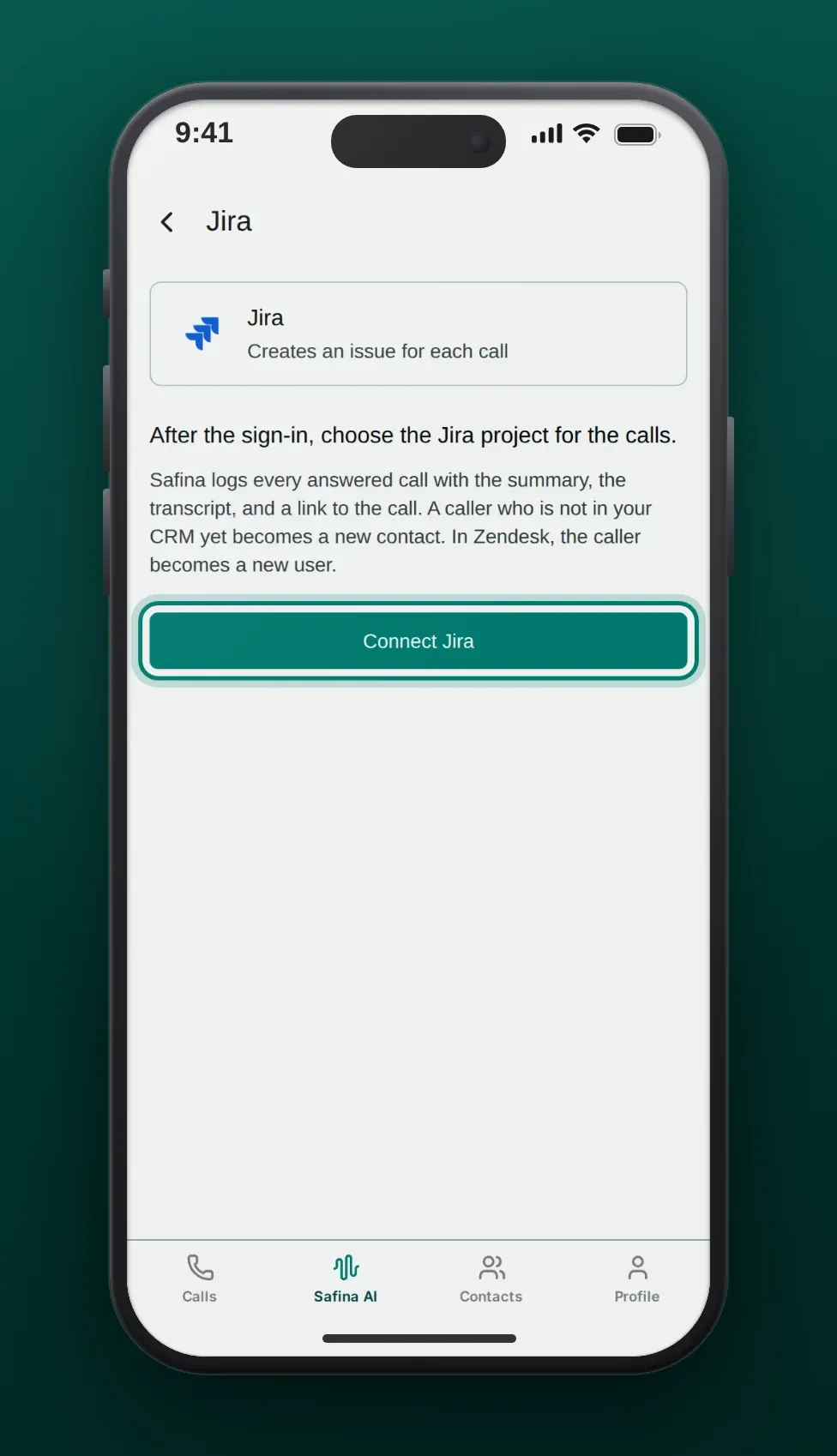
- Sign in with your Atlassian account and accept the access for Safina AI. Use an account that may create issues in the project. Safina creates the issues in the name of this account, so it shows as the reporter.
- Back in Safina, pick the project for the calls. If your account can reach only one project, Safina takes it by itself. To pick another project later, tap the Jira row on the Tools page.
- Call your Safina number and let Safina answer. When the call ends, Safina creates the issue.
The steps for all tools, and what happens when a tool refuses the sign-in, are in CRM and integrations.
What the Jira issue contains
| Field | What Safina writes |
|---|---|
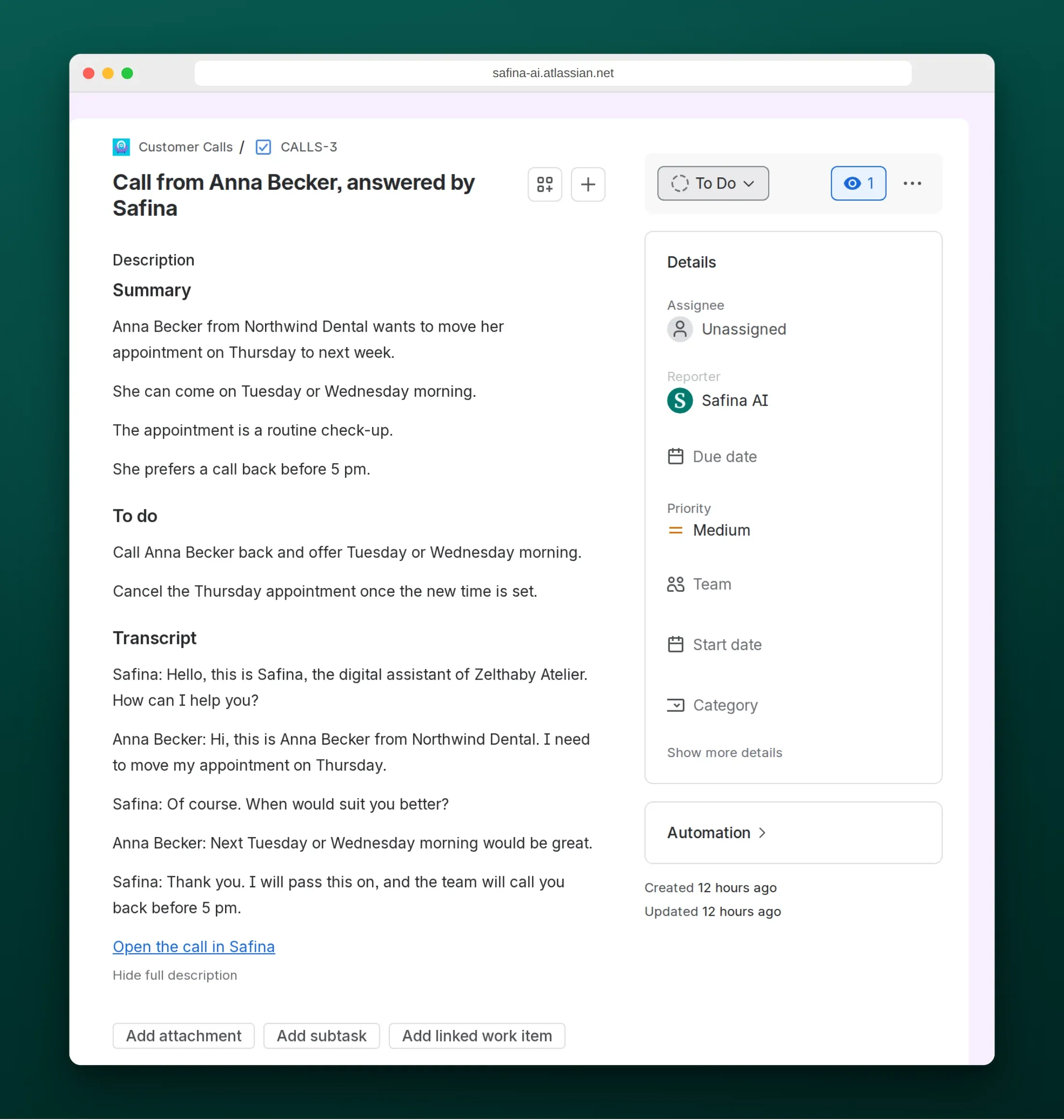
| Summary | “Call from [caller], answered by Safina” |
| Issue type | Task. If the project has no Task, Service request. Otherwise the first type that is not a sub-task. |
| Description | Summary (reason and key points), To do (action items), Transcript, then the link Open the call in Safina |
| Reporter | The Atlassian account that connected Jira |
| Everything else | Empty or the project’s default, for example no assignee and the default priority |
Safina writes in the email language of your Safina account. The audio recording is not sent. A long transcript is shortened from the end so the issue stays within Jira’s size limit; the link to the call always stays.
Tip: connect Jira with a shared account named after your business, for example “Front desk” or “Safina AI”. The reporter then tells your team at a glance that the issue came from a phone call.
Projects with required fields
Safina fills only the summary and the description. If the project needs another field and that field has no default value, for example a component or a due date, Jira would refuse the issue. Safina checks this when you pick the project and shows Safina cannot log calls in this project. If your account can reach only one project, Safina takes it without this check, so make a test call after you connect. Give the field a default value in Jira, make it optional, or pick another project.
The Safina AI app for Jira admins
The Safina AI app for Jira is coming to the Atlassian Marketplace. It adds an admin page under Jira settings > Apps > Safina AI, so a Jira admin can see and control what Safina does on the site without a Safina login of their own.
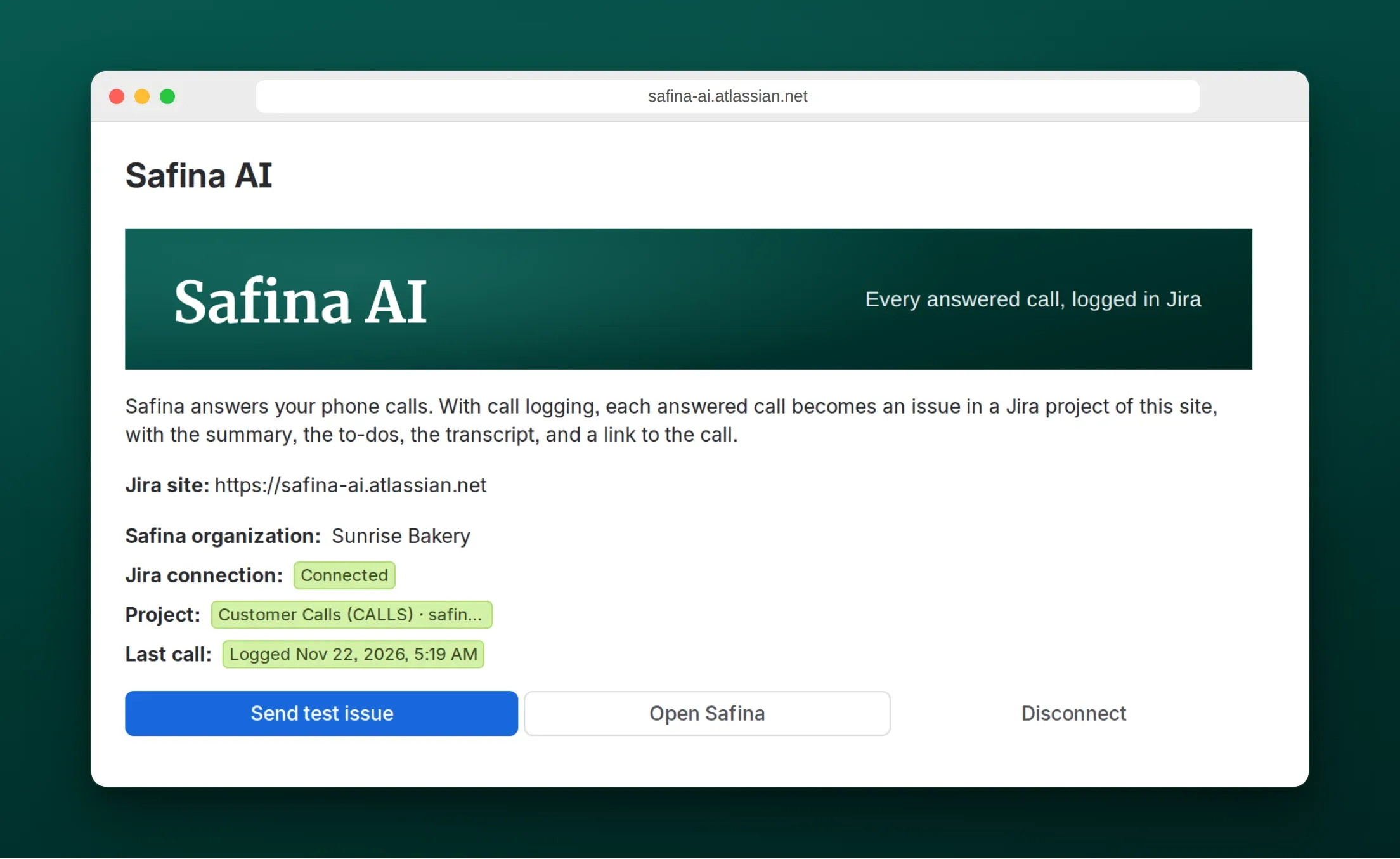
- Link to Safina: links the Jira site to your Safina team. Safina opens in a new tab. Sign in and confirm Link site. The link works for 10 minutes and only once.
- Status: shows the Safina organization, whether the Jira connection works, which project receives the calls, and whether the last call was logged.
- Send test issue: creates a test issue in the chosen project, at most once every 30 seconds. Use it after you change the project or its fields.
- Disconnect: unlinks the site. If Safina logs calls to a project of this site, it stops and deletes its Jira connection. Issues that Safina already created stay.
- Uninstall: removing the app does the same as Disconnect.
Option 2: Zapier, Make or n8n for custom fields
The direct connection fills the same fields for every call. If you need an assignee, labels, a component, a custom field, or different projects for different calls, send each call through a webhook to an automation tool and create the issue there.
- In Zapier, create a Zap with the trigger Webhooks by Zapier > Catch Hook and copy its URL. This trigger needs the Zapier Professional plan. Make’s Custom webhook module and n8n’s Webhook node work the same way.
- In the Safina app, open Safina AI > Call Logging > Webhooks, add a webhook with the URL and the method POST, save it and turn it on. Safina sends the event
call.endedafter every call. The details are in Connect Safina AI to your CRM via webhook. - Add Jira as the action app and choose Create Issue. Map
Data › Call › Summary › Caller Nameinto the summary andData › Call › Summary › Purposeinto the description, and set the assignee, labels or custom fields as you need. - To route calls, add a filter or a path before the action, for example by
Data › Call › Summary › Urgency Level. - Call your Safina number, test the trigger with that call, then turn the Zap on.
Three ways teams use Safina with Jira
Support requests by phone
Customers who call instead of writing a ticket still end up in the support queue. The transcript shows what the customer said in their own words, so the agent can start on the fix instead of calling back for details.
Jobs for a field team
Trades and property managers get calls at all hours. Each call becomes an issue in the jobs project, with the address and the problem in the summary. The dispatcher plans the day from the board, not from a voicemail list.
Client calls in an agency backlog
A client calls with a change request. The request lands in the project backlog next to the other work, where the team estimates it, assigns it and links it to the epic.
Frequently asked questions
Does Safina work with Jira Data Center or Jira Server?
No. Safina connects to Jira Cloud sites only, the ones at yourcompany.atlassian.net.
Who shows as the reporter of the issues?
The Atlassian account that connected Jira in Safina. Use a shared account with a clear name if you do not want the issues under a person’s name.
Can Safina log calls into several projects?
The direct connection writes into one project per Safina team. For several projects, use a webhook with Zapier, Make or n8n and route the calls there.
Which data does Safina read in Jira?
Safina lists the projects in which your account can create issues and reads which fields their create screen requires. Before it creates an issue, Safina reads the descriptions of the project’s issues from the last two days to find one it already made for the call, so the call does not show up twice. It does not read comments or attachments.
Which Safina plan do I need?
Pro or Business. Basic does not include call logging.
